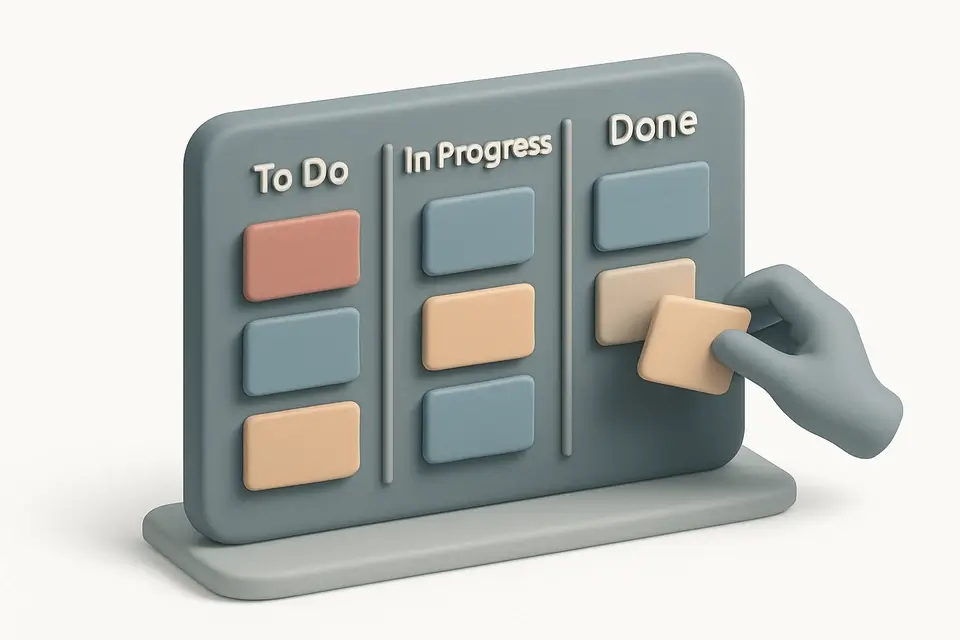
Organize Tasks with a Drag & Drop Kanban Board Organize tasks with a drag-and-drop Kanban board featuring customizable columns and color-coded cards.

Kanban Board
Organize tasks with a drag-and-drop Kanban board featuring customizable columns and color-coded cards.
Create Cards
Add task cards to any column.
Drag & Drop
Drag cards between columns to update status.
Customize
Add columns, edit cards, use colors.
What Is Kanban Board?
A Kanban Board is a visual task management system based on the Kanban methodology that enables users to organize and track work items efficiently. It is commonly used by developers, project managers, and team leaders to manage tasks and projects, solving the specific problem of task overwhelm by providing a clear and concise overview of all work items in progress.
The tool's drag-and-drop interface allows users to easily move cards between columns, which can be customized to fit specific workflows, such as To Do, In Progress, and Done. What makes this implementation different is its use of color-coded cards, inline editing capabilities, and support for unlimited columns, making it a flexible online kanban board solution.
It also utilizes the HTML5 Drag and Drop API to enable seamless card movement between columns. As a free kanban board online solution, it offers features like adding new columns and deleting existing ones, as well as editing and deleting individual cards. The tool's functionality is particularly useful for personal task management, project tracking, and sprint planning, making it an ideal choice for teams looking for a simple yet effective drag and drop kanban board solution to streamline their workflow.
Why Use Kanban Board?
-
Intuitive drag-and-drop
-
Customizable columns
-
Color-coded cards
-
Inline editing
-
No account needed
Common Use Cases
Personal Tasks
Track daily tasks visually.
Project Tracking
Monitor progress from planning to completion.
Sprint Planning
Organize user stories for sprints.
Content Calendar
Move content from idea to publication.
Technical Guide
The tool's core functionality relies on the React library for managing state and rendering the user interface. It utilizes the `useState` hook to store the board's state as an array of Column objects, each containing an array of Card objects with unique IDs generated using `Date.now()` and a random suffix. The `useCallback` hook is used to memoize functions like `addCard`, which updates the state by adding a new card to the specified column. When a card is dragged and dropped, the tool uses the HTML5 Drag and Drop API to store the column and card IDs in the `dataTransfer` object, allowing it to remove the card from its source column and add it to the destination column.
The tool's rendering process involves mapping over the array of Column objects and creating a separate div element for each column. Inside each column div, it maps over the array of Card objects and creates a draggable div element for each card. When a card is being edited, the tool uses an input field to allow users to update the card's text, and the `saveEdit` function updates the state with the new text. The tool also supports adding new columns and deleting existing ones by updating the state array of Column objects. Additionally, it utilizes CSS classes like `glass-card` and `glass-input` to style the user interface, providing a visually appealing and intuitive experience for users.
The use of React's `useState` and `useCallback` hooks enables efficient management of the tool's state and side effects, while the HTML5 Drag and Drop API provides a seamless user experience for dragging and dropping cards between columns. The tool's data structure, consisting of Column objects with Card arrays, allows for easy manipulation and updating of the board's state, making it a robust and flexible solution for task management and project tracking. By leveraging these technologies, the tool provides a fast and responsive user interface that can handle a large number of cards and columns, making it suitable for a wide range of use cases.
Tips & Best Practices
-
1Drag cards between columns to move tasks through different stages, triggering the onDrop function
-
2Delete unnecessary columns by clicking the 'x' button next to the column title
-
3Edit card text by clicking the ✏️ icon and pressing Enter to save changes
-
4Add new cards to a column by typing in the input field and pressing Enter or clicking the '+' button
-
5Create new columns by typing in the input field at the end of the board and pressing Enter or clicking the 'Add Column' button
Related Tools
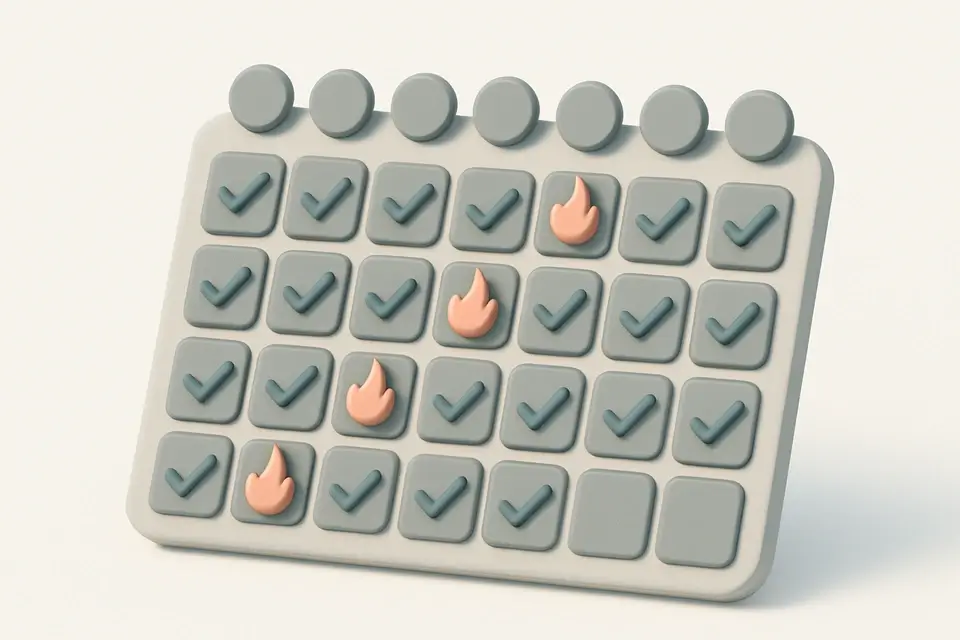

Habit Tracker
Track daily habits with visual streak counting, completion tracking, and progress visualization.
🧰 Miscellaneous

Pomodoro Timer
Full Pomodoro productivity timer with customizable work/break intervals and session tracking.
🧰 Miscellaneous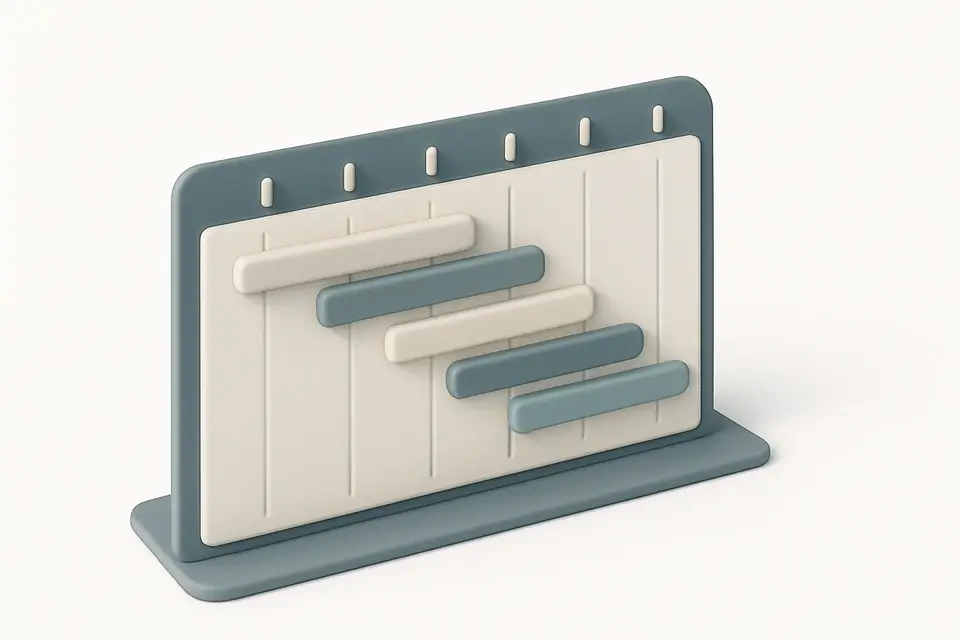

Project Timeline Generator
Create simple project timelines and Gantt charts with task scheduling and milestone tracking.
🧰 Miscellaneous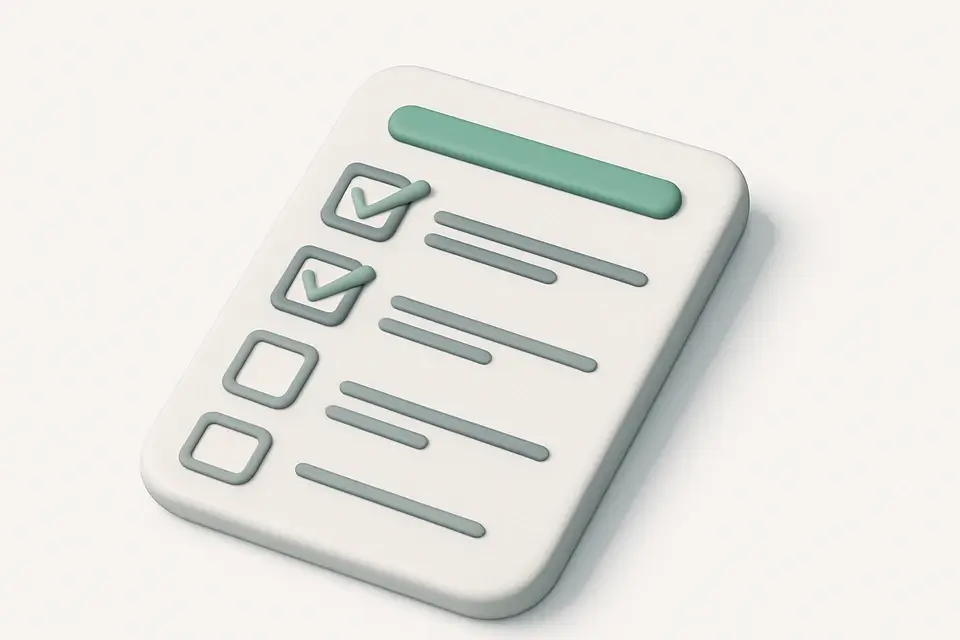

Checklist Generator
Create interactive checklists with checkboxes, progress tracking, and easy item management.
🧰 MiscellaneousFrequently Asked Questions
Q Does the kanban board save my data?
Q Can I add more columns?
Q How do I move cards between columns?
About This Tool
Kanban Board is a free online tool by FreeToolkit.ai. All processing happens directly in your browser — your data never leaves your device. No registration or installation required.