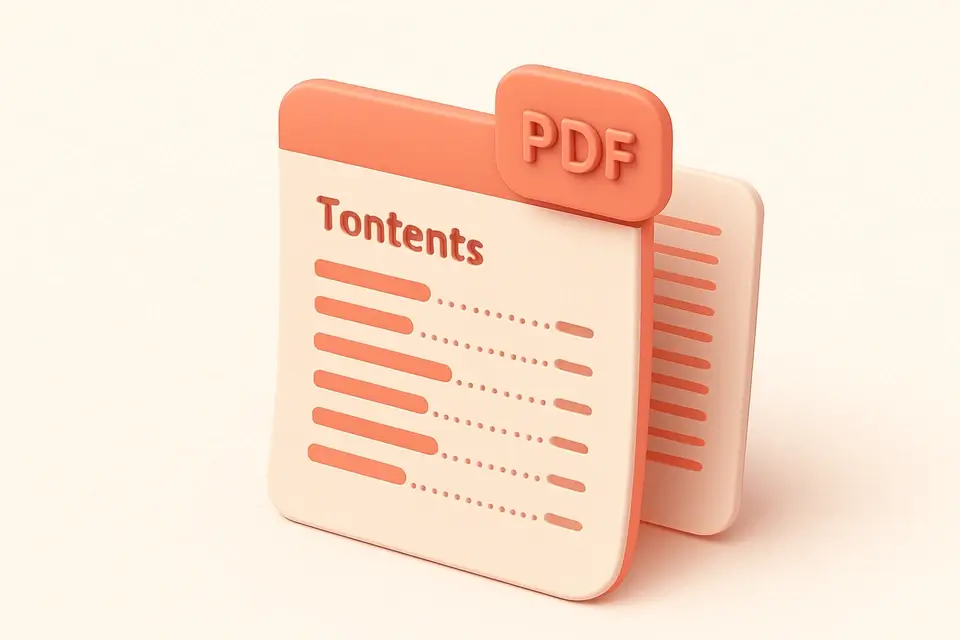
Create a PDF Table of Contents Add a table of contents page to your PDF document.

PDF Table of Contents
Add a table of contents page to your PDF document.
Upload PDF
Drop your PDF (optional).
Add Entries
Enter section titles and corresponding page numbers.
Generate TOC page
Create a TOC page with dotted leaders.
What Is PDF Table of Contents?
The PDF Table of Contents tool creates a professionally formatted TOC page and prepends it to your PDF document. Add section titles with their corresponding page numbers. The TOC features elegant dotted leaders connecting titles to page numbers, a customizable header, and clean typography. Page numbers are automatically adjusted to account for the inserted TOC page. You can create standalone TOC pages or prepend them to existing documents. Ideal for reports, manuals, books, and any multi-section document.
Why Use PDF Table of Contents?
-
Professional dotted leader lines
-
Automatic page number adjustment
-
Custom TOC title and unlimited entries
-
Clean typography with Helvetica fonts
Common Use Cases
Reports
Add navigable table of contents to long reports.
Manuals
Create organized TOC for user manuals.
Books
Generate TOC pages for book manuscripts.
Documentation
Add section index to technical documents.
Technical Guide
Uses pdf-lib with embedded Helvetica fonts. Creates a new A4 page and inserts at index 0. Renders TOC title in 22pt bold with a horizontal divider line. Each entry renders the section title on the left, dotted leader chars filling the space, and page number on the right. Page numbers are incremented by 1 to account for the TOC page itself. Dot leaders are rendered character by character with 4pt spacing. Title and page number widths are calculated for precise alignment.
Tips & Best Practices
-
1Page numbers auto-adjust for the inserted TOC page
-
2Keep section titles concise for cleaner layout
-
3Add entries in the order they appear in the document
-
4Use without a PDF to create standalone TOC pages
Related Tools






Frequently Asked Questions
Q Are page numbers adjusted?
Q Can I create a multi-page TOC?
Q Do the entries link to pages?
Q Can I upload without a PDF?
Q How many entries can I add?
About This Tool
PDF Table of Contents is a free online tool by FreeToolkit.ai. All processing happens directly in your browser — your data never leaves your device. No registration or installation required.