Convert Images to PDF Online Convert one or more images into a multi-page PDF document with layout options.
Image to PDF
Convert one or more images into a multi-page PDF document with layout options.
Add Images
Drop or select images — add as many as you need for the PDF.
Choose Layout
Select page size: A4, Letter, or Fit to Image.
Generate PDF
Click Generate to create and download the multi-page PDF.
What Is Image to PDF?
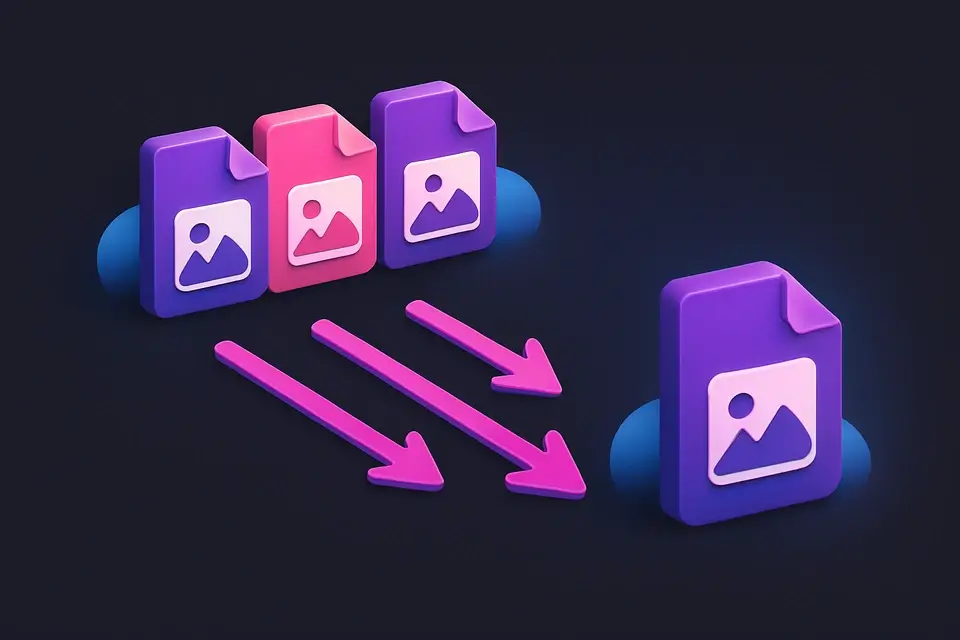
An Image to PDF is a tool that combines one or more images into a properly formatted PDF document, allowing users like graphic designers and digital photographers to easily convert images to pdf. It solves the specific problem of having multiple image files in formats like jpg or png that need to be shared or printed as a single document. The tool achieves this by generating each image as a separate page, centered and scaled to fit the chosen page size, which can be set to A4, US Letter, or Fit-to-Image sizing.
Developers use it because it provides fine-grained control over the output, including the ability to embed images as JPEG streams with DCTDecode compression for efficient file sizes. What makes this tool different is its ability to construct the PDF binary format manually in the browser, eliminating the need for server-side processing or external libraries. It also allows users to preview and remove individual images before generating the pdf, making it easy to convert photos to pdf or create a photo to pdf document.
The code implements features like a FileDropzone component that accepts image files, a page size selector, and a generate button that triggers the PDF creation process. When generating the PDF, it uses a canvas element to scale and center each image, then embeds the resulting JPEG streams into the PDF document using DCTDecode compression. This results in efficient file sizes for the output pdf, whether converting images from png to pdf or other formats.
Why Use Image to PDF?
Common Use Cases
Technical Guide
Under the hood, it uses a combination of browser APIs and manual file format construction to achieve its functionality. When an image is added via the FileDropzone component, it creates a URL object for that image using `URL.createObjectURL`, allowing it to be loaded into an `Image` element. The `generate` function then scales and centers each image on a canvas element, which is referenced by the `canvasRef`. This scaled image is converted to a JPEG stream using `Canvas.toBlob` with a quality setting of 0.92. Each JPEG stream is embedded in the PDF document as an XObject resource with DCTDecode compression filter.
The tool manually constructs the PDF binary format according to the PDF 1.4 specification, including the catalog, page tree, page objects, content streams, and cross-reference table. The `TextEncoder` API is used to encode strings into Uint8Arrays for inclusion in the PDF document. Content streams use the cm operator to position and scale images on the page, with coordinates specified in points (1/72 inch). Each page object references its corresponding XObject resource, which contains the JPEG stream. After generating all page objects and content streams, it creates a cross-reference table and trailer to complete the PDF structure.
This manual construction approach allows for fine-grained control over the output PDF document, including the ability to embed images with specific compression filters and scaling factors. By using `Canvas.toBlob` and `TextEncoder`, it avoids relying on external libraries or server-side processing, making it a self-contained solution for converting images to PDF documents in the browser. When generating the final PDF, it creates a Blob object from the concatenated Uint8Arrays and triggers a download via an anchor element, resulting in a properly formatted PDF document that can be opened by any compatible viewer.
Tips & Best Practices
-
1Add images in the order you want them in the PDF
-
2Use Fit to Image for photos that should not be cropped
-
3Remove unwanted images before generating
-
4A4 is standard for documents, Letter for US formats
Related Tools
Image Resizer
Resize images by exact pixel dimensions or percentage while maintaining aspect ratio.
🖼️ Image Tools
Image Compress
Compress images by adjusting quality to reduce file size while maintaining visual quality.
🖼️ Image Tools
Image Format Converter
Convert images between JPG, PNG, and WebP formats with quality control.
🖼️ Image Tools
Bulk Image Converter
Convert multiple images to PNG, JPG, or WebP format in one batch operation.
🖼️ Image ToolsFrequently Asked Questions
Q How many images can I add?
Q What image quality is used?
Q How is page order determined?
Q What affects the PDF file size?
Q Can I set margins?
About This Tool
Image to PDF is a free online tool by FreeToolkit.ai. All processing happens directly in your browser — your data never leaves your device. No registration or installation required.