Combine JPG and PNG Images into PDF Online Combine multiple images into a single PDF document.
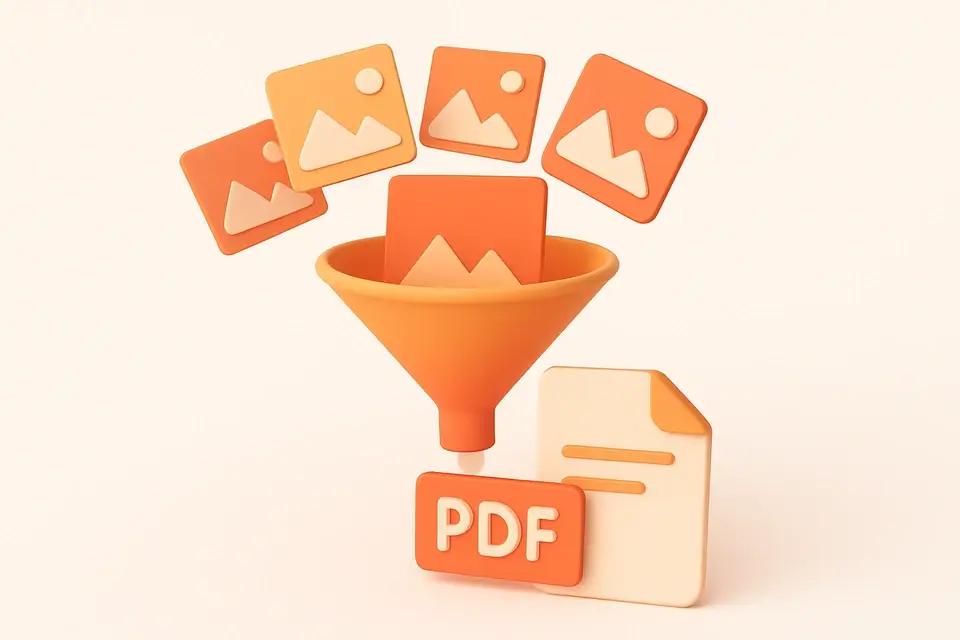

Images to PDF
Combine multiple images into a single PDF document.
Add Images
Drop JPG or PNG images into the converter.
Configure
Choose page size and arrange image order.
Create PDF
Generate and download your combined PDF.
What Is Images to PDF?
A Images to PDF is a web-based utility that enables users to merge multiple image files into a single Portable Document Format file, specifically supporting JPG and PNG formats. Graphic designers, photographers, and document archivists use it to organize their visual assets and create compilations of images in a widely compatible format. One specific problem it solves is the need to combine multiple photos or scans into a single document for easy sharing or storage, such as creating a photo album from png to pdf conversions.
The tool allows users to drag and drop multiple images, reorder them as needed using move up and down buttons, and then generate a professional PDF with customizable page sizes, including A4, Letter, or fit-to-image options. What makes it different is its ability to scale each image to fit the chosen page size while maintaining its aspect ratio, ensuring that the resulting pdf document looks polished and visually appealing.
It uses the pdf-lib library to generate PDFs entirely in the browser, eliminating the need for server-side processing or third-party services. By supporting combine images pdf functionality, it simplifies tasks such as scanning document compilations or packaging visual assets like jpg to pdf conversions, making it an ideal solution for users who need to work with multiple image files and convert them into a single, easily shareable format like photo to pdf.
Why Use Images to PDF?
-
Supports both JPG and PNG formats
-
Multiple page size options (A4, Letter, fit-to-image)
-
Reorder images before conversion
-
Images centered and scaled automatically
Common Use Cases
Technical Guide
The tool works by using the pdf-lib library to create a new PDFDocument, into which it embeds images using either the embedJpg or embedPng methods, depending on the image type. When processing multiple files, it handles them sequentially, adding each one to the document as a separate page. To ensure proper scaling, it calculates the dimensions of each image and adjusts them to fit within the selected page size, whether that's A4, Letter, or a fit-to-image option, while maintaining the aspect ratio. The images are then centered on each page with 20pt margins. This process is facilitated by the use of React state management, specifically the useState hook, which stores the list of files to be processed, as well as other relevant data such as the current page size and any error messages that may occur during processing. The URL.createObjectURL method is used to generate a downloadable PDF file from the resulting Blob object, which contains the PDF bytes generated by pdf-lib's save method.
When users interact with the tool, their actions trigger various callbacks, including handleFile, removeFile, moveUp, and moveDown, each of which updates the state accordingly. The process callback is where the actual PDF generation occurs, using async/await to handle the promise returned by pdf-lib's create method. If an error occurs during processing, it is caught and stored in the error state, allowing for user notification. The useEffect hook ensures that any existing object URLs are revoked when the component unmounts or the result changes, preventing memory leaks. Throughout this process, React's useCallback hook helps optimize performance by memoizing frequently used functions and preventing unnecessary re-renders. By leveraging these technologies and techniques, the tool provides a seamless user experience while generating high-quality PDFs entirely in the browser.
Tips & Best Practices
-
1Use A4 or Letter for printable documents
-
2Fit-to-image preserves original proportions
-
3Add images in the order you want them
-
4Supports JPEG and PNG formats only
Related Tools
Frequently Asked Questions
Q What image formats are supported?
Q Is there a limit on number of images?
Q Can I reorder images?
Q What page sizes are available?
Q Are images compressed?
About This Tool
Images to PDF is a free online tool by FreeToolkit.ai. All processing happens directly in your browser — your data never leaves your device. No registration or installation required.