Convert PDF to Images Convert PDF to images.
PDF to Images
Convert PDF to images.
Upload PDF
Drop your PDF file into the drop zone.
Configure settings
Choose format (PNG or JPG) and resolution.
Download images
Click Download All to save the extracted images.
What Is PDF to Images?
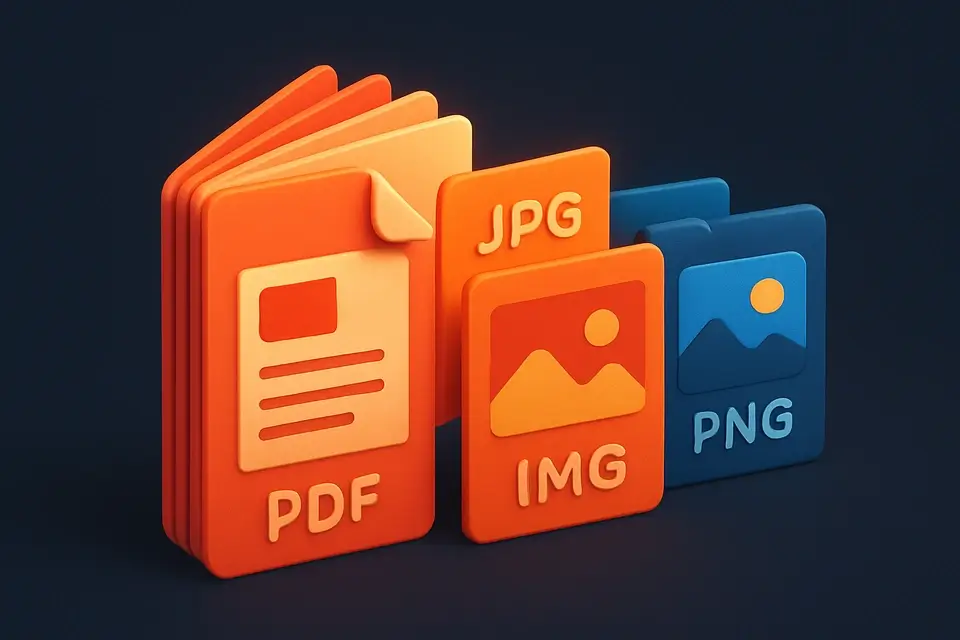
A PDF to Images converter is a software application that transforms Portable Document Format files into image files, such as JPG or PNG, allowing users to easily view and share the contents of their PDFs in a more versatile format. Developers and designers often use it to extract images from PDF documents for web development, graphic design, or other purposes, solving the specific problem of having to manually recreate graphics or screenshots from PDF files.
The tool is particularly useful when you need to convert pdf to png or convert pdf to jpg online, without relying on external software or plugins. What makes this tool different is its ability to perform all operations client-side, using libraries like pdfjs-dist to render the PDF pages into canvas elements, and then converting those canvases into images in the desired format, such as free pdf to images conversion.
It allows users to select the output format, quality, and resolution of the generated images, with options for JPG quality ranging from 60% to 100%, and resolutions up to 3x (216 DPI), making it a flexible solution for how to convert pdf to images. Additionally, it provides a download all feature, enabling users to save all converted images at once, which is especially useful when dealing with multi-page PDF documents.
Why Use PDF to Images?
-
Preview thumbnails before download
-
Client-side
-
Free
-
One-click download
Common Use Cases
Web development
Convert PDF pages for integration.
Design review
Validate page layouts.
Documentation
Turn docs into image assets.
Learning
Practice conversion interactively.
Technical Guide
The tool works by utilizing the pdfjs-dist library to parse and render PDF pages into canvas elements. This process involves creating an array buffer from the uploaded PDF file, which is then used to get a PDF document object using pdfjs-dist's getDocument method. The PDF document object contains information about the number of pages in the PDF, allowing the tool to loop through each page and render it onto a canvas element. The rendering process uses the page's getViewport method to determine the size of the canvas based on the selected resolution, which can be set to 1x (72 DPI), 2x (144 DPI), or 3x (216 DPI). Once the page is rendered onto the canvas, the tool uses the canvas's toDataURL method to convert it into an image in the desired format, either JPG or PNG. The quality of the output image can be controlled when using JPG format, with options ranging from 0.6 (60%) to 1 (100%).
The React library is used to manage the tool's state and handle user interactions, such as selecting the output format and resolution, uploading a PDF file, and triggering the conversion process. Memoization techniques are applied using React's useCallback hook to prevent unnecessary re-renders of components when their dependencies change. The responsive UI is built using CSS grid and flexbox layouts, ensuring that the tool adapts to different screen sizes and devices. When an error occurs during the conversion process, it catches the error and displays a message to the user. After successful conversion, the images are stored in the component's state as an array of base64-encoded strings, which can be downloaded individually or all at once using the download all feature.
The tool also leverages browser APIs such as document.createElement to create new HTML elements like canvas and anchor tags for downloading the converted images. The FileDropzone component handles file uploads, accepting only PDF files with a .pdf extension or application/pdf MIME type. Upon selecting a valid PDF file, it updates the component's state by calling the handleFile callback function, which in turn resets any previous errors and clears the list of converted images.
Tips & Best Practices
-
1Set the output format to 'jpg' or 'png' using the select dropdown
-
2Adjust the quality setting when converting to JPG by choosing from 60%, 80%, 92%, or 100%
-
3Scale the resolution of images by selecting 1x, 2x, or 3x
-
4Download all converted images at once by clicking the 'Download All' button
-
5Reset the tool by clicking the 'Reset' button to clear uploaded files and converted images
Related Tools
Frequently Asked Questions
Q Is the PDF to images tool free?
Q Is it safe to convert PDFs to images?
Q Can I use it offline?
Q What browsers does it support?
Q Can I use it for commercial projects?
About This Tool
PDF to Images is a free online tool by FreeToolkit.ai. All processing happens directly in your browser — your data never leaves your device. No registration or installation required.