Create Warhol-Style Pop Art from Photos Create Andy Warhol-style pop art with bold colors.
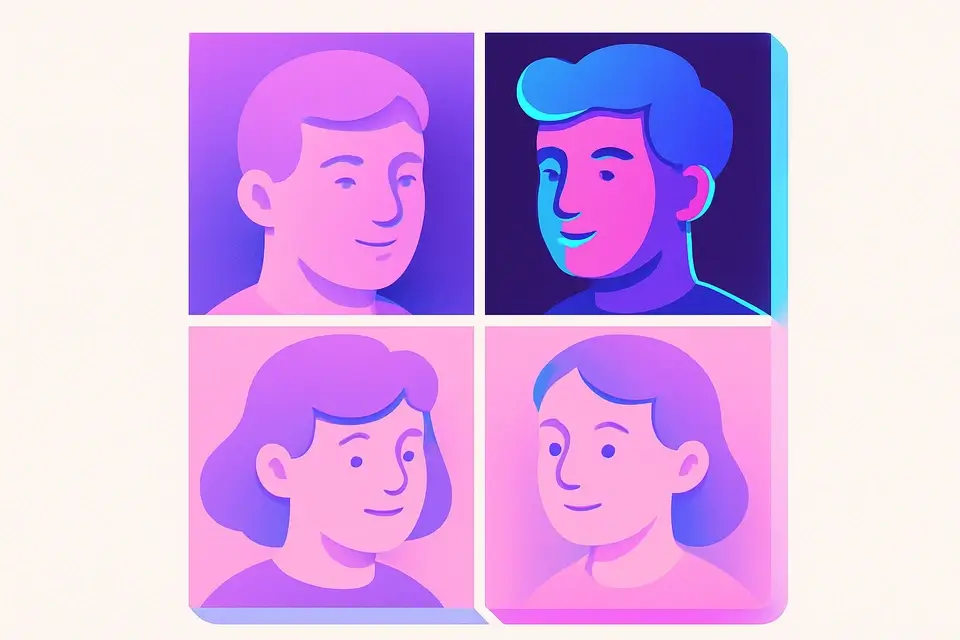
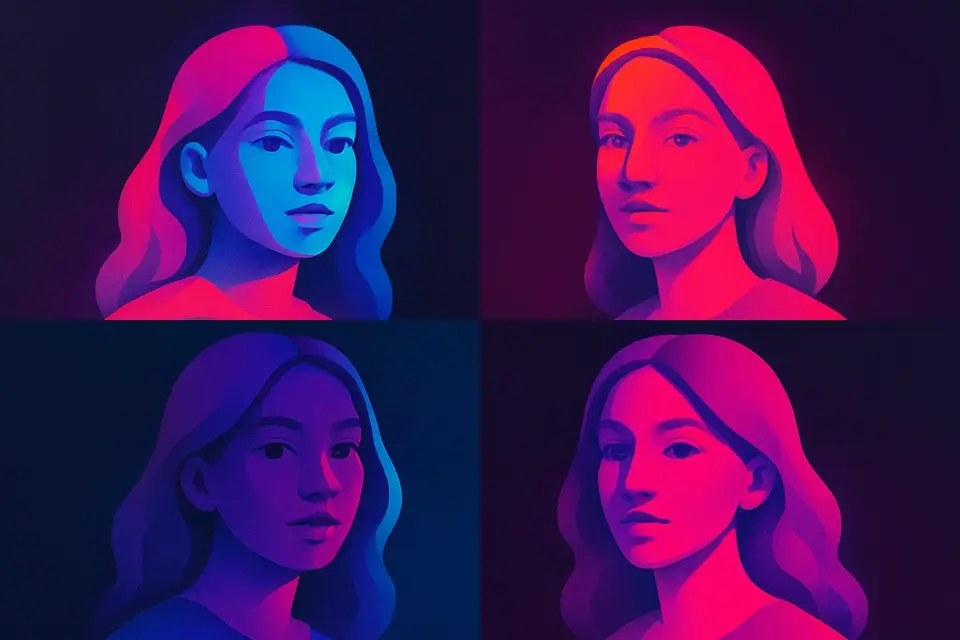
Image Pop Art
Create Andy Warhol-style pop art with bold colors.
Upload Image
Drop or select a photo.
Choose Palette
Select a pop art color scheme.
Apply and Download
Click Apply, preview, and download.
What Is Image Pop Art?
Image Pop Art is a technique that transforms photos into bold pop art by applying a pop art filter, posterizing images to 4 levels and mapping each level to a vibrant color palette, inspired by Warhol screen printing. Graphic designers and digital artists use it to create eye-catching visuals with a Warhol style aesthetic. One specific problem it solves is the need to manually adjust color palettes and levels to achieve a desired pop art effect, which can be time-consuming and requires expertise.
The tool differs from other pop art generators in its ability to allow users to select from predefined palettes, currently offering 4 different options, each with 4 bold colors. It also features a canvas element where the image is processed and rendered in real-time, enabling instant previewing of the applied effects. When processing an image, it uses the `getImageData` method to extract pixel data, which is then manipulated based on the selected palette.
It processes images using a JavaScript implementation that takes into account the luminance of each pixel, mapping it to the corresponding color in the chosen palette. This results in a stylized image with bold colors and a distinct pop art effect. Users can download their resulting images as PNG files, making it easy to integrate them into various designs or share them online. The tool's simplicity and customization options make it an ideal choice for those looking to add a touch of pop art flair to their digital creations.
Why Use Image Pop Art?
-
Preset color palettes
-
Posterization + color mapping
-
Bold graphic images
-
Multiple palette options
Common Use Cases
Wall Art
Warhol-style portrait prints.
Social Media
Eye-catching pop art posts.
Event Posters
Bold graphic poster design.
Brand Identity
Pop-art-style brand images.
Technical Guide
The tool works by first loading the user-uploaded image into memory using the `URL.createObjectURL` method from the File API, which creates a URL that can be used to reference the file. This URL is then set as the source of an `Image` object, which is drawn onto a hidden canvas element using the `drawImage` method from the Canvas API. The canvas element's 2D drawing context is obtained using the `getContext` method, and its width and height are set to match those of the image.
The pixel data of the image is then extracted using the `getImageData` method, which returns an array containing the red, green, blue, and alpha values for each pixel. This data is stored in a Uint8ClampedArray, where each group of four elements represents a single pixel. The tool then iterates over this array, calculating the luminance of each pixel using the formula `d[i]*0.299+d[i+1]*0.587+d[i+2]*0.114`, which is based on the relative sensitivity of the human eye to different wavelengths of light.
The calculated luminance value is then used to determine which zone the pixel belongs to, with zones being defined as 0-63, 64-127, 128-191, and 192-255. The corresponding color from the chosen palette is then assigned to the pixel by updating the red, green, and blue values in the array. Finally, the modified pixel data is written back to the canvas using the `putImageData` method, resulting in a stylized image with bold colors and a distinct pop art effect.
The tool uses React's `useState` hook to manage its state, including the uploaded image, the processed result, and the currently selected palette. The `useCallback` hook is used to memoize functions that are called repeatedly, such as the `handleFile` function that handles user-uploaded files and the `processImage` function that applies the pop art effect to the image. The tool also uses React's `useRef` hook to create a reference to the canvas element, which is then used to access its 2D drawing context.
When the user clicks the download button, the tool creates a new link element using the `document.createElement` method and sets its `href` attribute to the URL of the processed image, which is obtained using the `toDataURL` method from the Canvas API. The link's `download` attribute is then set to "pop-art.png", and the link is simulated to be clicked using the `click` method, resulting in the image being downloaded as a PNG file.
Tips & Best Practices
-
1Selecting different color palettes updates the `palette` state variable
-
2Clicking the Apply button triggers the `processImage` function
-
3Revoke the image URL when resetting to free up memory
-
4Use the `download` function to save the result as a PNG file
-
5Adjust the `palettes` array to customize the pop art effect with different bold colors
Related Tools

Image Contrast
Adjust image contrast to enhance or reduce the difference between light and dark areas.
🖼️ Image Tools
Image Posterize
Reduce the number of color levels per channel for a flat, poster-like effect.
🖼️ Image Tools
Image Halftone
Create newspaper-style halftone dot patterns from images.
🖼️ Image Tools
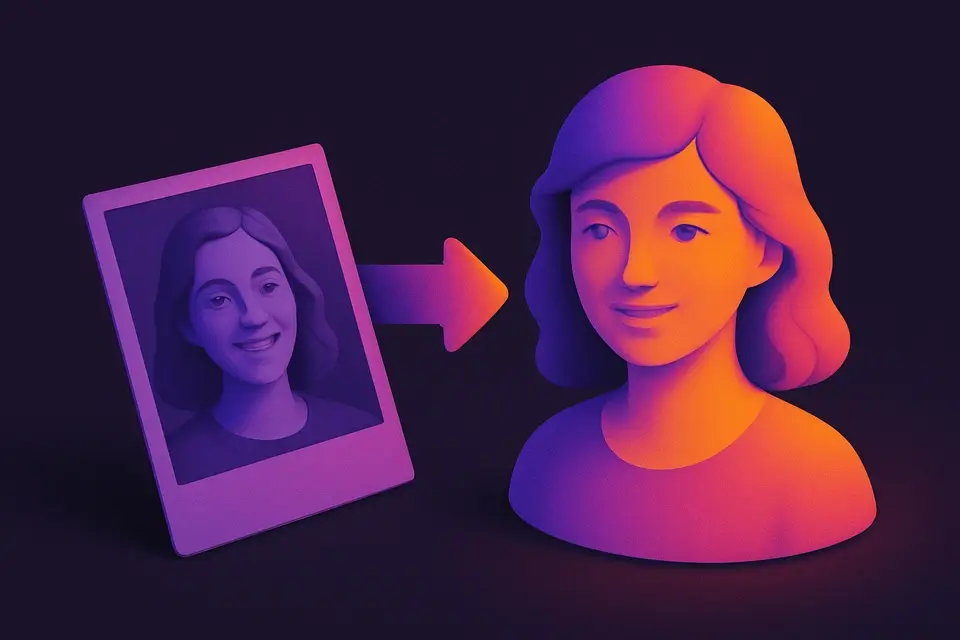
Image Duotone
Apply duotone effect by mapping tones to two custom colors.
🖼️ Image ToolsFrequently Asked Questions
Q What is pop art?
Q What images work best for pop art?
Q Can I use custom colors?
Q How does it resemble Warhol style?
About This Tool
Image Pop Art is a free online tool by FreeToolkit.ai. All processing happens directly in your browser — your data never leaves your device. No registration or installation required.