Image Oil Paint Transform photos into oil painting style with brush stroke simulation.
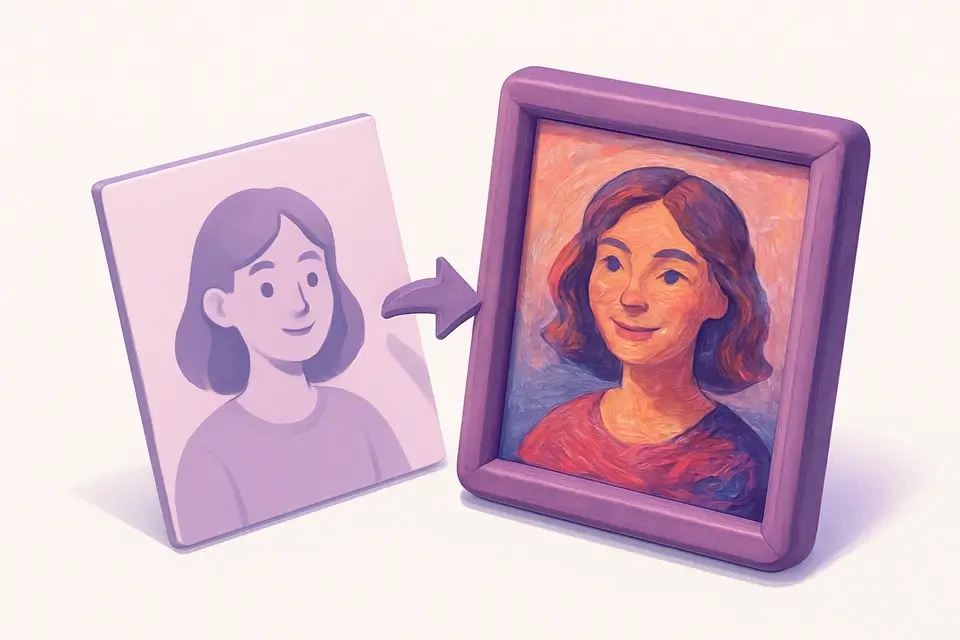
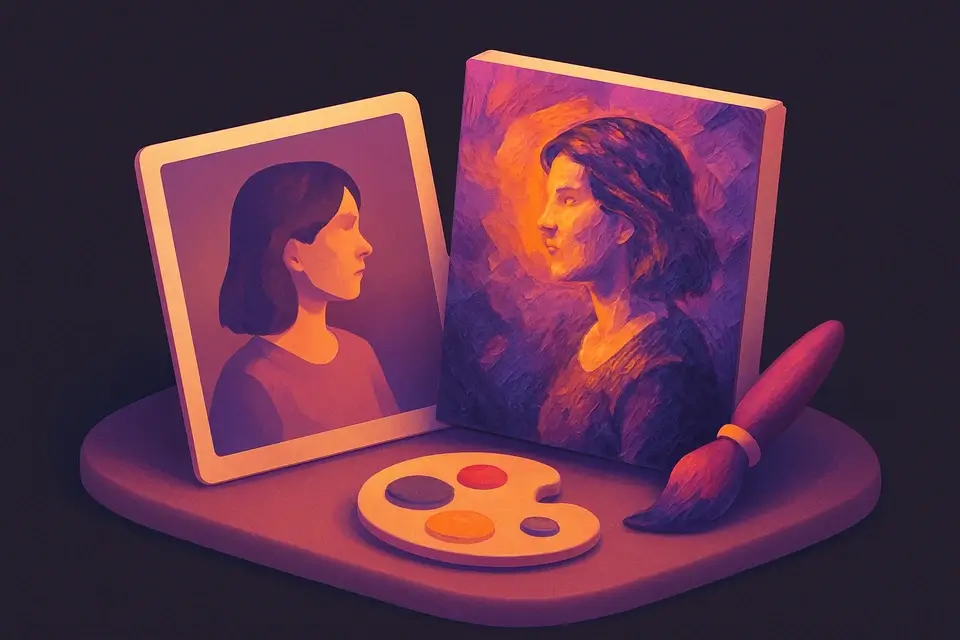
Image Oil Paint
Transform photos into oil painting style with brush stroke simulation.
Upload Image
Drop or select a photo.
Adjust Settings
Control brush radius and intensity levels.
Apply and Download
Click Apply, preview, and download.
What Is Image Oil Paint?
A Image Oil Paint is a digital tool that transforms photos into oil paintings by applying a painting filter, grouping nearby pixels into flat color regions simulating brush strokes. It is commonly used by graphic designers and photographers who need to achieve a unique painterly effect in their images. One specific problem it solves is the inability to manually replicate the intricate details of an oil paint effect on a digital image, which can be time-consuming and require extensive editing skills.
The tool's intensity binning algorithm allows it to analyze the color distribution of neighboring pixels and determine the dominant color group, effectively creating a brush stroke effect. What makes this tool different is its ability to adjust the brush radius and intensity levels, giving users control over the level of detail and texture in the output image. For example, the code includes input ranges for brush radius and intensity levels, allowing users to fine-tune the oil paint effect to their liking.
It uses a combination of HTMLCanvasElement and Uint8ClampedArray to process the image data, enabling fast and efficient rendering of the photo to painting transformation. The tool's ability to download the resulting image as a PNG file also makes it convenient for users to share or further edit their creations, achieving a professional-looking painterly effect without requiring extensive artistic skills.
Why Use Image Oil Paint?
-
Adjustable brush radius
-
Intensity levels for flatness
-
Convincing painterly effects
-
No artistic skill required
Common Use Cases
Art Prints
Convert photos to painting-style art.
Creative Projects
Painterly illustrations.
Social Media
Artistic photo versions.
Gift Creation
Painting-style personalized gifts.
Technical Guide
The tool works under the hood by utilizing React's useState and useRef hooks to manage the image state and canvas reference. When an image is dropped into the FileDropzone component, it creates a URL object for the file using URL.createObjectURL, which is then set as the image state. The useEffect hook ensures that this URL object is revoked when the image is changed or reset, preventing memory leaks.
The processImage function uses the HTMLCanvasElement's 2D drawing context to draw the original image onto a canvas element. It then retrieves the image data from the canvas using ctx.getImageData and processes it by iterating over each pixel. For each pixel, it examines neighboring pixels within a specified radius, bins them by intensity level, finds the mode (the most frequent intensity level), and outputs the average color of that bin. This is achieved through the use of Uint8ClampedArray to efficiently manipulate the image data.
The algorithm's time complexity is O(pixels × radius²) due to the nested loops iterating over each pixel and its neighbors within the specified radius. The intensity levels are divided into n bins, where n is a user-adjustable value between 5 and 30, allowing for control over the level of detail in the output image. The brush radius can also be adjusted by the user, ranging from 1 to 8 pixels, giving more flexibility to the oil paint effect. When the processImage function completes, it updates the result state with a PNG representation of the transformed image, which can then be downloaded or reset.
The canvas element is used in conjunction with React's useCallback hook to memoize the processImage function and prevent unnecessary re-renders. The download functionality uses the HTMLAnchorElement to create a downloadable link for the resulting image, allowing users to easily share or further edit their creations. By utilizing these technologies and algorithms, the tool efficiently transforms photos into oil paintings with adjustable levels of detail and texture.
Tips & Best Practices
-
13-5 for fine strokes, 8-12 for bold
-
2Fewer levels = more abstract
-
3Higher res needs larger radius
-
4Small radius for quick previews
Related Tools

Image Blur
Apply box blur to soften images with adjustable radius control.
🖼️ Image Tools
Image Pixelate
Pixelate images with adjustable block size for retro effects or privacy masking.
🖼️ Image Tools
Image Posterize
Reduce the number of color levels per channel for a flat, poster-like effect.
🖼️ Image Tools
Image Pencil Sketch
Convert photos into pencil sketch drawings.
🖼️ Image ToolsFrequently Asked Questions
Q Why slow on large images?
Q What radius?
Q Uses AI?
Q Brush direction?
About This Tool
Image Oil Paint is a free online tool by FreeToolkit.ai. All processing happens directly in your browser — your data never leaves your device. No registration or installation required.