Image Channel Merger Merge separate Red, Green, and Blue channel images into a single combined image.
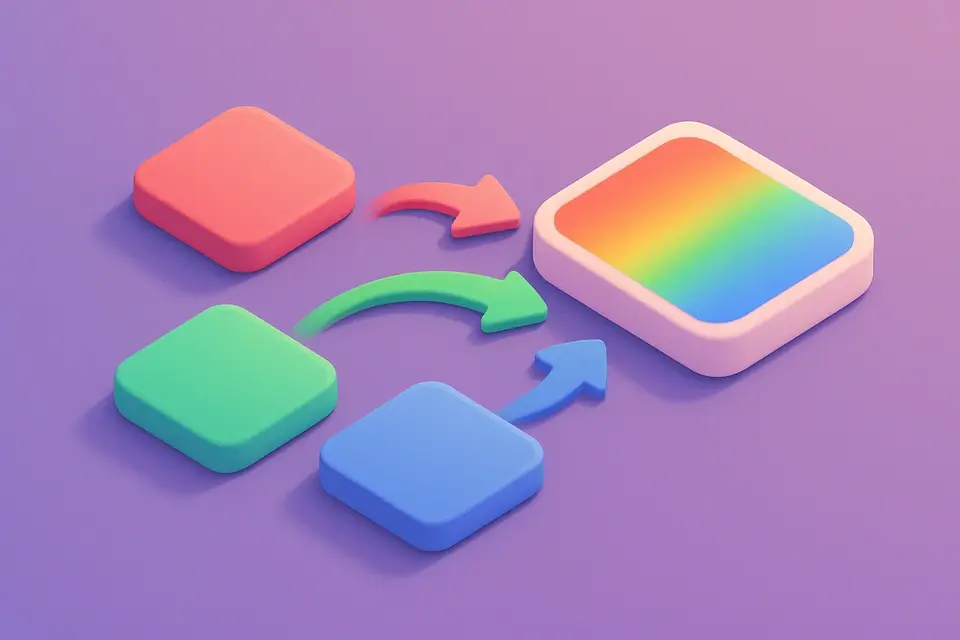
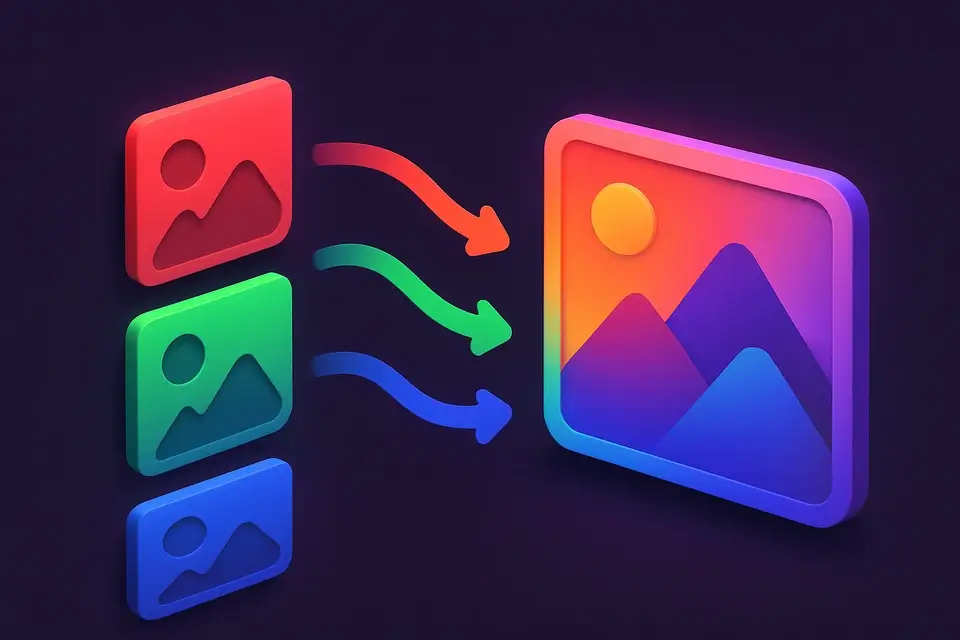
Image Channel Merger
Merge separate Red, Green, and Blue channel images into a single combined image.
Upload Channels
Upload separate images for Red, Green, and Blue channels.
Merge
Click Merge to combine the channels into a single image.
Download
Preview the merged result and download as PNG.
What Is Image Channel Merger?
An image channel merger that combines separate Red, Green, and Blue channel images into a single RGB image. Upload individual channel images (from the Channel Splitter or any source) and merge them. Each image contributes its respective color channel. Missing channels default to black (0). Images are scaled to match the largest dimensions. Perfect for advanced compositing and channel manipulation workflows.
Why Use Image Channel Merger?
-
Merge up to 3 channels (R, G, B) into one image
-
Missing channels default to black (zero)
-
Images auto-scaled to match dimensions
-
Works with any image format for input channels
Common Use Cases
Channel Editing
Edit individual channels separately and recombine.
Creative Effects
Mix channels from different images for artistic effects.
Data Visualization
Combine grayscale data layers into a false-color composite.
Game Textures
Pack multiple data maps into RGB channels.
Technical Guide
Each uploaded image is drawn onto canvas and its pixel data extracted. For the red channel, only data[i] (R component) is used. For green, data[i+1]. For blue, data[i+2]. A merged ImageData is constructed with R from the red image, G from the green image, and B from the blue image. Alpha is set to 255. If images have different sizes, they are scaled to the largest dimensions using drawImage.
Tips & Best Practices
-
1Use with Channel Splitter for a round-trip editing workflow
-
2Missing channels contribute 0 (black) to the result
-
3Try swapping channels for color-shifted creative effects
-
4Grayscale images work well as individual channel inputs
Related Tools
Image Blend Modes
Apply Photoshop-style blend modes between two images: multiply, screen, overlay, and more.
🖼️ Image Tools
Image Overlay Blend
Blend two images together using Photoshop-style blend modes like multiply, screen, and overlay.
🖼️ Image Tools
Image Histogram
Visualize the color distribution of an image with RGB and luminance histograms.
🖼️ Image Tools
Image Channel Splitter
Split an image into separate Red, Green, Blue, and Alpha channel images.
🖼️ Image ToolsFrequently Asked Questions
Q Are all three channels required?
Q How are different image sizes handled?
Q Can I use grayscale images as input?
Q Does the output include an alpha channel?
Q In what order should I upload the channels?
About This Tool
Image Channel Merger is a free online tool by FreeToolkit.ai. All processing happens directly in your browser — your data never leaves your device. No registration or installation required.