Virtual Sticky Notes Virtual sticky notes board for organizing ideas with color-coded, draggable notes.
Sticky Notes
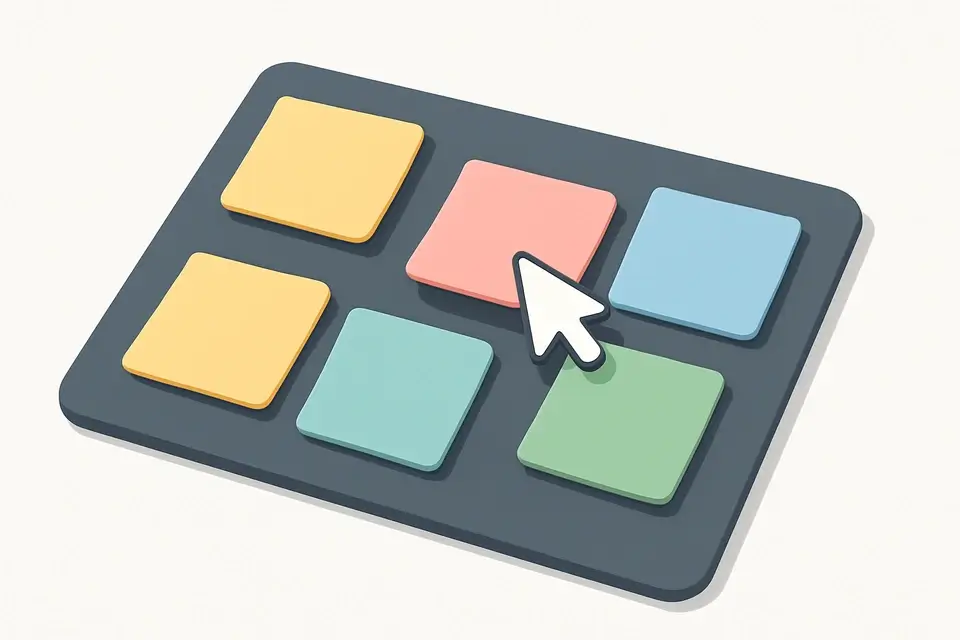
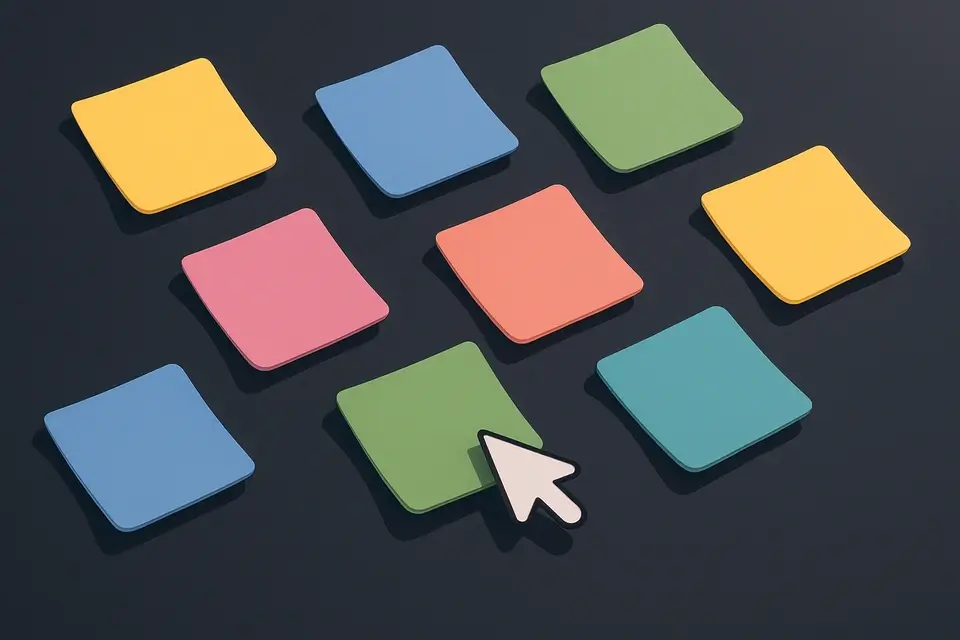
Virtual sticky notes board for organizing ideas with color-coded, draggable notes.
Create New Note
Click the 'Add Note' button to create a new note, which will be assigned a random position on the notes board. The newly created note is automatically set for editing.
Change Note Color
Select a color by clicking on the corresponding colored button in the toolbar or next to each note's header, changing the background and text colors of the note accordingly.
Drag Notes Around
Click and hold on a note to drag it around the notes board, allowing for easy reorganization and positioning of notes.
What Is Sticky Notes?
A Sticky Notes is a digital note-taking tool that allows users to create and manage virtual sticky notes online, providing an organized space for jotting down ideas, reminders, and to-do lists. Developers, designers, and project managers use it to keep track of tasks, deadlines, and meeting notes, solving the problem of scattered information across multiple physical notebooks or digital platforms. One specific problem it solves is the inability to easily categorize and prioritize notes based on color, which is a key feature of this tool.
It allows users to create new notes with a single click, and each note can be dragged and dropped to any position on the online note board using pointer events. The code also includes features like contenteditable for inline editing, enabling users to quickly edit note text without having to open a separate editor. What makes this tool different is its use of CSS transforms to create a seamless drag-and-drop experience, combined with color-coded organization options that enable users to categorize notes by importance or theme.
The tool's online interface also includes a toolbar with options to change note colors, delete notes, and export all notes as text, making it a versatile digital sticky notes solution. By using positioned divs and CSS transforms, the tool provides a flexible and customizable online note board that can be used for both personal and collaborative projects, effectively replacing traditional physical sticky notes with a more convenient and accessible alternative.
Why Use Sticky Notes?
-
Instant drag-and-drop organization with color-coded notes
-
Runs entirely in your browser — your data stays private
-
No signup or installation required
-
Mobile-friendly responsive interface
Common Use Cases
Daily Task Management for Students
As a college student, Emily uses it to keep track of her assignments and deadlines. She creates notes with different colors to categorize tasks by subject. This helps her stay organized and focused on her studies.
Meeting Note Taking for Professionals
During meetings, David quickly types down key points in a note. He then drags it to a designated area of the board to group related notes together. This allows him to review and summarize discussions efficiently.
Creating a To-Do List for Home Projects
When planning a DIY project, Sarah starts by creating a list of materials needed. She adds notes with checkboxes to mark off completed tasks, making it easy to track progress and stay on top of her work.
Travel Planning and Itinerary Organization
Before a trip, Mark researches destinations and activities, jotting down notes about each place. He uses different colors to differentiate between types of activities, such as sightseeing or dining, to create a visually appealing itinerary.
Brainstorming Ideas for Creative Projects
As a writer, Rachel uses it to brainstorm ideas for her stories. She creates multiple notes with different characters, plot twists, and settings, then moves them around to explore relationships between elements and develop her narrative.
Tracking Expenses and Budgeting for Freelancers
To manage his finances, Jack creates notes for each client project, tracking hours worked and expenses incurred. He regularly reviews these notes to adjust his budget and ensure he's meeting his financial goals.
Technical Guide
The tool uses a combination of React state management and browser APIs to enable its functionality. Specifically, it utilizes the `useState` hook to store notes in an array of objects, where each object represents a note with properties like `id`, `text`, `color`, `x`, and `y`. The `useCallback` hook is used to memoize functions like `addNote`, `updateNote`, and `deleteNote`, which are triggered by user interactions. When a user clicks the "Add Note" button, the `addNote` function generates a new note object with a unique `id` using `Date.now().toString()` and adds it to the notes array.
The tool's drag-and-drop functionality relies on pointer events like `onPointerDown`, `onPointerMove`, and `onPointerUp`. When a user clicks on a note, the `handlePointerDown` function sets the `dragging` state to an object containing the note's `id` and offset coordinates. As the user moves their pointer, the `handlePointerMove` function updates the note's position by calculating its new `x` and `y` coordinates based on the pointer's movement and the note's initial offset. This calculation ensures that the note moves smoothly with the user's gesture.
The tool also uses CSS classes to apply color-coded styles to each note, which are defined in the `NOTE_COLORS` array. When a user selects a new color for a note, the `changeNoteColor` function updates the note's `color` property and applies the corresponding CSS class to its HTML element. The `getColorClasses` function is used to retrieve the CSS classes for a given color name by searching through the `NOTE_COLORS` array.
In terms of data storage, the tool does not persist notes to a file or database. Instead, it relies on the browser's memory to store the notes array. When the user exports all notes as text, the `exportNotes` function concatenates each note's text into a single string and writes it to the clipboard using the `navigator.clipboard.writeText` API.
The tool's HTML structure consists of positioned divs with absolute coordinates, which are updated dynamically when a note is moved or resized. The `glass-card` class applies a CSS transform to create a seamless drag-and-drop experience, while the `contenteditable` attribute enables inline editing of note text. Overall, the tool's implementation combines React state management, browser APIs, and CSS transforms to provide a flexible and customizable digital sticky notes solution.
Tips & Best Practices
-
1Drag notes by clicking and holding on the note header
-
2Click the color buttons in the toolbar to change the default note color
-
3Press Enter or click outside a note to stop editing it
-
4Use the 'Copy All' button to export all notes as plain text
-
5Right-clicking is not required, use the delete button on each note instead
Related Tools


Email Validator
Validate email addresses against RFC 5322 format rules with detailed error explanations.
🧰 Miscellaneous

Credit Card Validator
Validate credit card numbers using the Luhn algorithm with card network detection.
🧰 Miscellaneous

URL Validator
Validate URL format and structure with protocol, domain, path, and query string analysis.
🧰 Miscellaneous

JSON Validator
Validate JSON syntax with detailed error messages showing the exact location of issues.
🧰 MiscellaneousFrequently Asked Questions
Q Is this tool free?
Q Is my data safe?
Q Does it work on mobile?
Q Can I organize my sticky notes by color?
About This Tool
Sticky Notes is a free online tool by FreeToolkit.ai. All processing happens directly in your browser — your data never leaves your device. No registration or installation required.