Create Animated GIFs from Images Create animated GIF files from a sequence of images with customizable frame delay.
Images to GIF
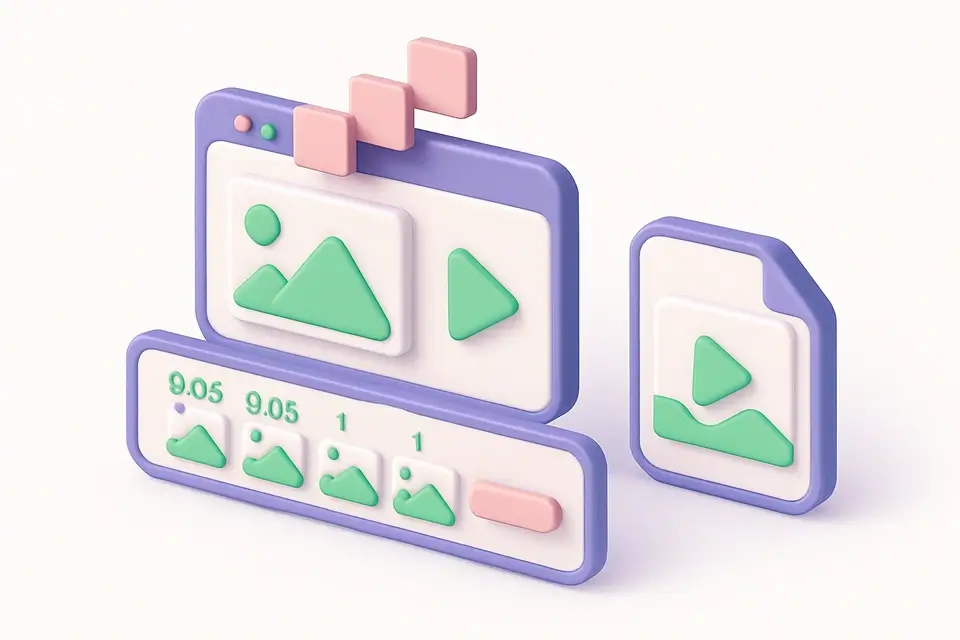
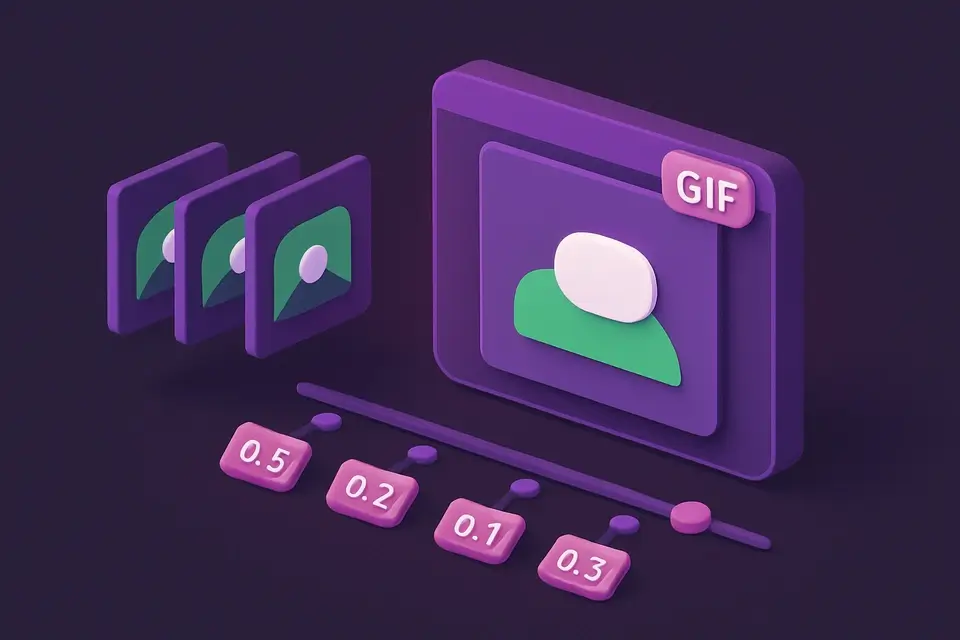
Create animated GIF files from a sequence of images with customizable frame delay.
Add Frames
Drop or select images to use as animation frames.
Set Timing
Adjust the delay between frames in milliseconds.
Create GIF
Generate the animated GIF and download it.
What Is Images to GIF?
A Images to GIF is an image-sequence animator that converts a sequence of images into an animated file, allowing users to create animated GIFs from individual images. Graphic designers and digital artists use it to turn static image sequences into engaging animations, solving the problem of manually creating each frame of an animation. This specific issue is addressed by allowing users to add images in the order they want them to animate, set the frame delay, and generate a looping animation.
The tool stands out due to its ability to handle client-side encoding with a custom encoder, eliminating the need for server uploads and ensuring faster processing times. It also provides features like adjustable frame delay, ranging from 20ms to 2000ms, and allows users to preview their image sequence before generating the GIF. Additionally, it includes buttons for common frame delays of 50ms, 100ms, 200ms, 500ms, and 1000ms, making it easy to create a gif maker that suits various needs.
It uses a custom gif creator to quantize colors to 256, applies LZW compression, and writes proper GIF89a format with Netscape looping extension, ensuring the generated GIFs are compatible with most browsers and devices. With its client-side encoding and customizable frame delay, it makes creating animated GIFs from image sequences a straightforward process, allowing users to focus on designing their animations rather than worrying about the technical aspects of create animated gif conversion.
Why Use Images to GIF?
-
Custom frame delay from 20ms to 2000ms
-
Automatic color quantization to 256 colors
-
Proper GIF89a format with infinite looping
-
No watermarks or branding on output
Common Use Cases
Social Media
Create reaction GIFs or animated memes from image sequences.
Product Demos
Animate product screenshots to show features in action.
Tutorials
Create step-by-step animated guides from screenshots.
Presentations
Make animated slides for embedding in web pages.
Technical Guide
The tool works by utilizing React's useState and useRef hooks to manage the state of uploaded images and a canvas element. When an image is dropped into the FileDropzone component, it triggers the handleFile function which updates the state with the new image URL and name. The generate function is called when the user clicks the "Create GIF" button, this function loads all the images onto the canvas using the HTMLImageElement and Promise.all to wait for all images to load. It then finds the maximum dimensions of all images, scales them down if necessary to a maximum of 800 pixels for performance, and draws each image onto the canvas at these uniform dimensions.
The canvas context is used to get the image data which is then encoded into a GIF frame using the encodeGif function from the gif-codec library. This function applies LZW compression to the pixel data and writes it in the GIF89a format with a Netscape looping extension for compatibility. The tool uses a custom encoder to quantize colors to 256, ensuring that generated GIFs are compatible with most browsers and devices. Each frame's delay is specified using the graphic control extension, allowing for adjustable frame delays between 20ms and 2000ms.
When all frames have been encoded, the resulting blob is created as a URL object which can be downloaded by the user or displayed in the browser. The tool uses React's useCallback hook to memoize functions like generate and download, preventing unnecessary re-renders and improving performance. It also uses React's useRef hook to create a reference to the canvas element, allowing it to access the canvas context and perform drawing operations on it. The removal of images is handled by revoking the object URL of the image using URL.revokeObjectURL and updating the state with the new list of images.
Tips & Best Practices
-
1Keep frame count reasonable (under 50) for manageable file size
-
2Lower delay = faster animation (100ms is a good default)
-
3Use images with similar dimensions for best results
-
4Simpler images with fewer colors produce smaller GIFs
Related Tools
GIF Speed Changer
Speed up or slow down animated GIF files by adjusting the frame delay timing.
🖼️ Image Tools
GIF Resizer
Resize animated GIF files to new dimensions while preserving the animation.
🖼️ Image Tools
GIF Reverser
Reverse animated GIF playback or create a boomerang loop effect.
🖼️ Image Tools
GIF Optimizer
Optimize animated GIF file size by reducing colors and dimensions.
🖼️ Image ToolsFrequently Asked Questions
Q How many frames can I add?
Q What is the GIF color limit?
Q What affects the GIF file size?
Q How is frame order determined?
Q What happens with mixed image sizes?
About This Tool
Images to GIF is a free online tool by FreeToolkit.ai. All processing happens directly in your browser — your data never leaves your device. No registration or installation required.