HEIC to JPG Converter Convert Apple HEIC/HEIF photos to widely compatible JPG format.
HEIC to JPG
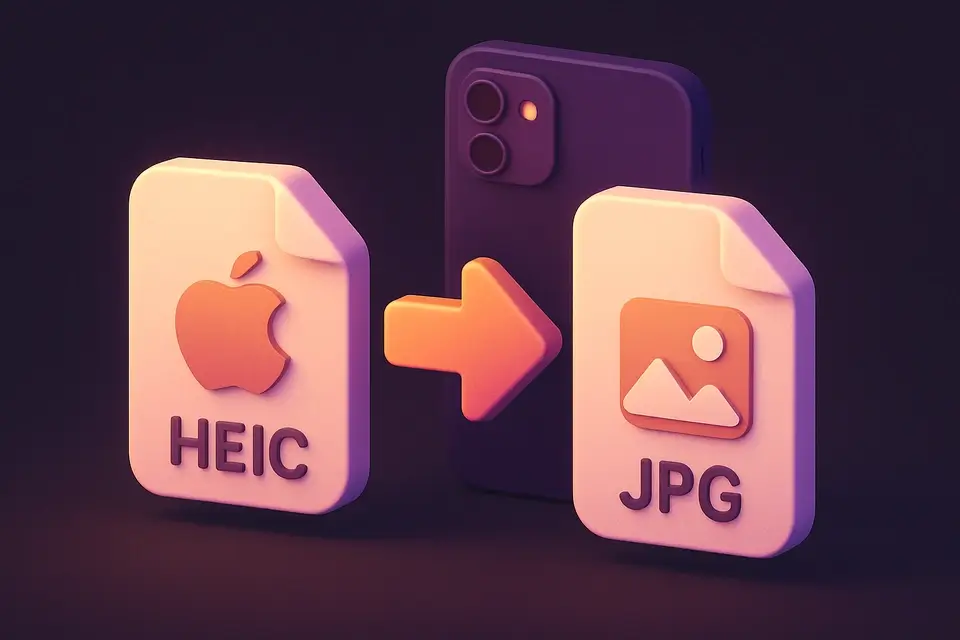
Convert Apple HEIC/HEIF photos to widely compatible JPG format.
Upload HEIC File
Drop or select a HEIC/HEIF image from your iPhone, iPad, or Mac.
Convert Automatically
The tool automatically converts your HEIC image to high-quality JPG format.
Download JPG
Preview the converted image and click Download to save the JPG file.
What Is HEIC to JPG?
HEIC (High Efficiency Image Container) is Apple's default image format for iPhone and iPad photos since iOS 11. While HEIC offers superior compression and quality compared to JPEG, many applications, websites, and devices don't support it. This converter transforms HEIC/HEIF images into universally compatible JPG format. The conversion preserves image quality at 92% JPEG quality. The tool attempts to use the heic2any library for conversion, with a canvas-based fallback for browsers that natively support HEIC rendering. All processing runs in your browser; no files are uploaded.
Why Use HEIC to JPG?
-
Converts iPhone/iPad HEIC photos to universally compatible JPG
-
High-quality output at 92% JPEG quality
-
Works with both HEIC and HEIF file extensions
-
Browser-based — your photos stay private
Common Use Cases
Share iPhone Photos
Convert HEIC photos to JPG before sharing with Windows users or uploading to incompatible platforms.
Website Uploads
Convert Apple photos to JPG for web forms and CMS platforms that don't accept HEIC.
Social Media
Ensure your iPhone photos are compatible with all social media platforms.
Document Embedding
Convert HEIC to JPG for embedding in Word documents, PDFs, and presentations.
Technical Guide
HEIC uses the HEVC video codec for still image compression, achieving approximately 50% better compression than JPEG at equivalent quality. The conversion process uses the heic2any library which decodes the HEIC container and HEVC bitstream in JavaScript, then re-encodes as JPEG. If heic2any is not available, the tool falls back to the browser native HEIC support by creating an Image element and drawing it to a canvas. The JPEG output quality is set to 0.92.
Tips & Best Practices
-
1On iPhone, you can set the camera to shoot in JPEG directly: Settings > Camera > Formats > Most Compatible
-
2HEIC files are typically 40-50% smaller than equivalent JPGs — file size will increase after conversion
-
3If conversion fails, try opening the file in your default photo viewer first to verify it is valid
-
4For batch conversion of many iPhone photos, try our Bulk Image Converter tool
Related Tools
Image Compress
Compress images by adjusting quality to reduce file size while maintaining visual quality.
🖼️ Image Tools
Image Format Converter
Convert images between JPG, PNG, and WebP formats with quality control.
🖼️ Image Tools
HEIC to PNG
Convert Apple HEIC/HEIF photos to lossless PNG format with transparency support.
🖼️ Image Tools
Bulk Image Converter
Convert multiple images to PNG, JPG, or WebP format in one batch operation.
🖼️ Image ToolsFrequently Asked Questions
Q What is a HEIC file?
Q Why can't I open HEIC files on Windows?
Q Will the conversion lose quality?
Q Can I convert multiple HEIC files?
Q Does it preserve EXIF data?
About This Tool
HEIC to JPG is a free online tool by FreeToolkit.ai. All processing happens directly in your browser — your data never leaves your device. No registration or installation required.