Bulk Image Resizer Resize multiple images at once to the same dimensions with batch processing.

Bulk Image Resizer
Resize multiple images at once to the same dimensions with batch processing.
Upload Multiple Images
Drop or select multiple image files for batch processing.
Set Target Dimensions
Choose resize mode (by width, height, or exact) and enter target dimensions.
Process and Download
Click to resize all images, then download individually or all at once.
What Is Bulk Image Resizer?
A bulk image resizer lets you resize multiple images simultaneously to consistent dimensions. Upload an entire batch and apply the same resizing parameters to all of them. Choose from three resize modes: by width (maintains aspect ratio), by height (maintains aspect ratio), or exact dimensions. This is essential for e-commerce product photos, social media content batches, website image standardization, and any workflow requiring consistent dimensions across many files. All processing happens in your browser.
Why Use Bulk Image Resizer?
-
Process multiple images in a single batch operation
-
Three resize modes: by width, by height, or exact size
-
Download individual results or all at once
-
Browser-based — images never leave your device
Common Use Cases
E-Commerce
Standardize product photo dimensions for consistent catalog listings.
Social Media Batches
Resize a batch of images to the same dimensions for scheduled social posts.
Website Assets
Resize all images for a website to maximum width constraints.
Photography Portfolio
Standardize portfolio image sizes for gallery displays.
Technical Guide
Batch resizing processes images sequentially using a single shared canvas element. Each image is loaded via Object URL, drawn to the canvas at target dimensions, and exported as PNG. In by-width mode, height is calculated proportionally. Processing is sequential to manage memory. Original and new dimensions are displayed for each processed image.
Tips & Best Practices
-
1Use By Width mode to maintain aspect ratios while standardizing widths
-
2Add images one at a time or batch-select from your file picker
-
3Remove unwanted files from the list before processing
-
4For very large batches (50+ images), process in groups to avoid memory issues
Related Tools


Image Resizer
Resize images by exact pixel dimensions or percentage while maintaining aspect ratio.
🖼️ Image Tools
Image Compress
Compress images by adjusting quality to reduce file size while maintaining visual quality.
🖼️ Image Tools
Image Format Converter
Convert images between JPG, PNG, and WebP formats with quality control.
🖼️ Image Tools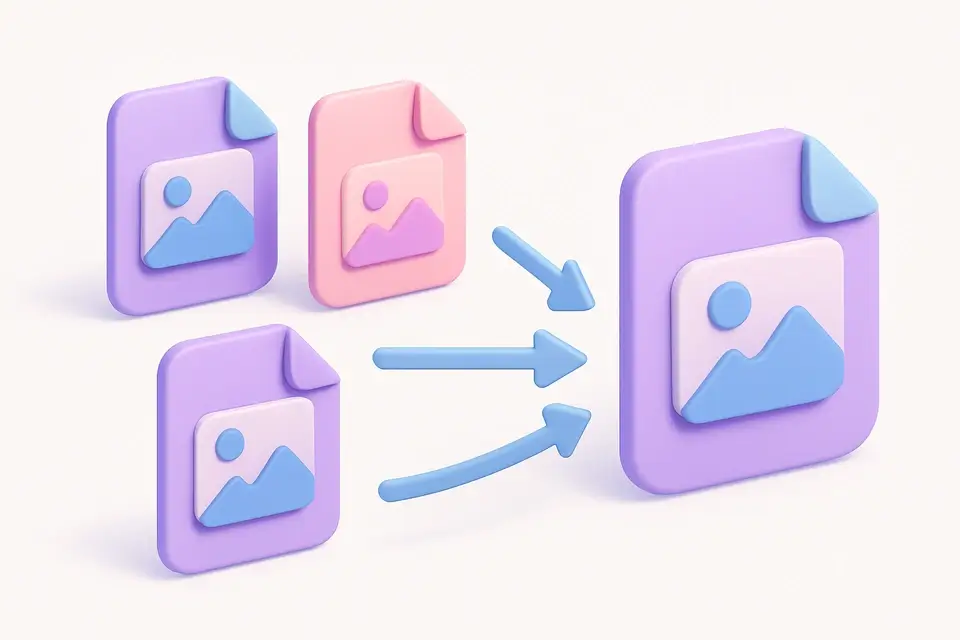
Bulk Image Converter
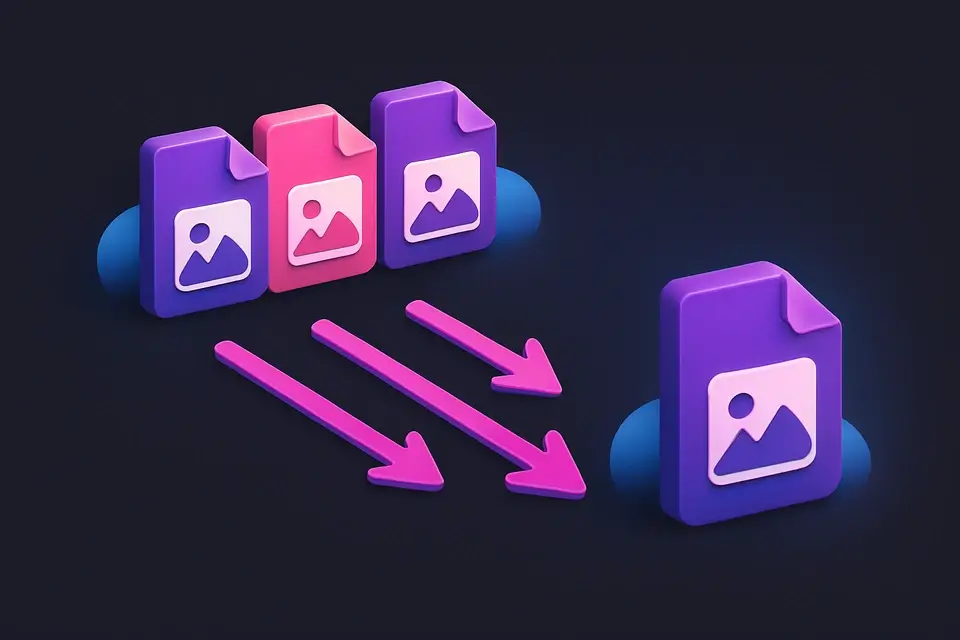
Convert multiple images to PNG, JPG, or WebP format in one batch operation.
🖼️ Image ToolsFrequently Asked Questions
Q How many images can I process at once?
Q Will aspect ratios be maintained?
Q What format is the output?
Q Can I set different sizes for different images?
Q Does it preserve EXIF data?
About This Tool
Bulk Image Resizer is a free online tool by FreeToolkit.ai. All processing happens directly in your browser — your data never leaves your device. No registration or installation required.