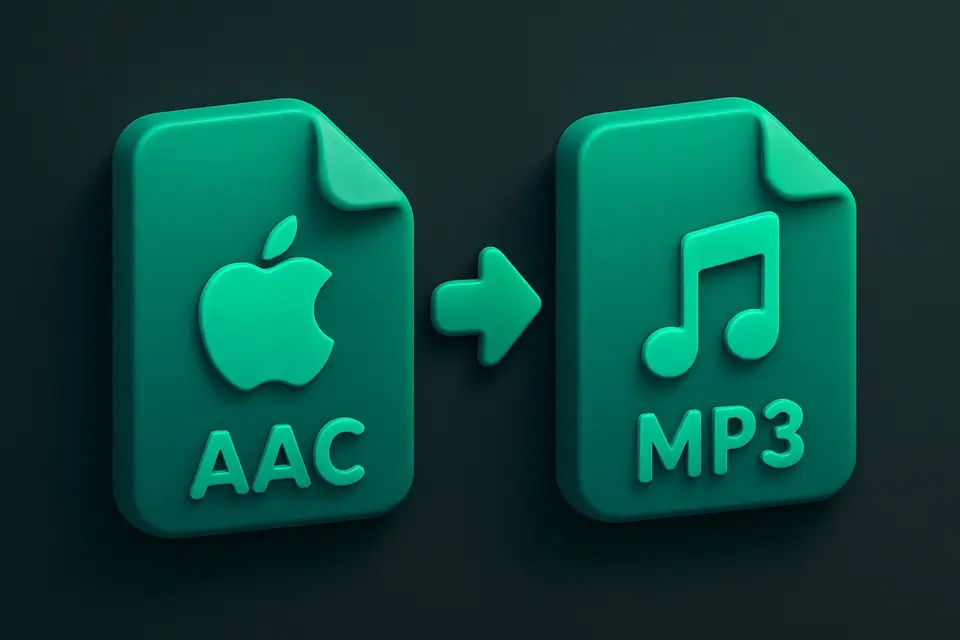
AAC to MP3 Converter Convert AAC/M4A audio files to MP3 format in your browser.
AAC to MP3 Converter
Convert AAC/M4A audio files to MP3 format in your browser.
Upload AAC
Drag and drop your AAC or M4A file or click to browse.
Convert
Click Convert to transform your AAC into MP3 format.
Download
Download your converted MP3 file instantly.
What Is AAC to MP3 Converter?
The AAC to MP3 Converter transforms AAC and M4A audio files into universally compatible MP3 format directly in your browser. While AAC offers superior audio quality, MP3 remains the most widely supported format. This tool uses the Web Audio API to decode AAC audio and re-encode it in a compatible format. Perfect for sharing music from Apple devices or converting audio files for older players and systems that don't support AAC. Everything processes locally — your files never leave your device.
Why Use AAC to MP3 Converter?
-
Convert Apple-format audio to universally compatible MP3
-
Browser-based processing — no file uploads needed
-
Works with both AAC and M4A container files
-
Free with no registration or software installation
Common Use Cases
Cross-Platform Sharing
Convert Apple AAC recordings to MP3 for sharing with anyone.
Legacy Devices
Create MP3 files for older MP3 players and car stereos.
Music Libraries
Standardize mixed-format music collections to MP3.
Podcast Distribution
Turn AAC podcast recordings into MP3 for maximum platform compatibility.
Technical Guide
The tool accepts AAC files (both raw .aac and .m4a container format) and decodes them using AudioContext.decodeAudioData(). The browser's native AAC decoder handles the decompression into raw PCM audio buffers. The decoded audio is then re-encoded using a MediaRecorder-based pipeline connected through an OfflineAudioContext and MediaStream destination. The output is a widely-compatible audio file. Channel count (mono/stereo) and sample rate are preserved from the source. The conversion handles AAC-LC, AAC-HE, and AAC-HEv2 profiles that the browser's decoder supports. Error handling accounts for corrupted or DRM-protected files that cannot be decoded.
Tips & Best Practices
-
1DRM-protected AAC files (from older iTunes purchases) cannot be converted
-
2Keep original AAC files — they often have better quality than the MP3 output
-
3For voice recordings, MP3 at 96kbps is usually sufficient quality
-
4Check that your source file is not DRM-protected before conversion
Related Tools
OGG to MP3 Converter
Convert OGG Vorbis audio files to MP3 format in your browser.
🎵 Audio Tools
MP3 to AAC Converter
Convert MP3 audio files to AAC format in your browser.
🎵 Audio Tools
FLAC to MP3 Converter
Convert lossless FLAC audio files to MP3 format in your browser.
🎵 Audio Tools
M4A to MP3 Converter
Convert M4A audio files to MP3 format in your browser.
🎵 Audio ToolsFrequently Asked Questions
Q Can I convert DRM-protected AAC files?
Q What's the difference between AAC and M4A?
Q Will quality be affected?
Q Does it work offline?
Q Are my files safe?
About This Tool
AAC to MP3 Converter is a free online tool by FreeToolkit.ai. All processing happens directly in your browser — your data never leaves your device. No registration or installation required.