Convert Text to Speech in Your Browser Convert text to spoken audio using the Web Speech API.
Text to Speech
Convert text to spoken audio using the Web Speech API.
Enter Text
Type or paste the text you want to hear.
Configure Voice
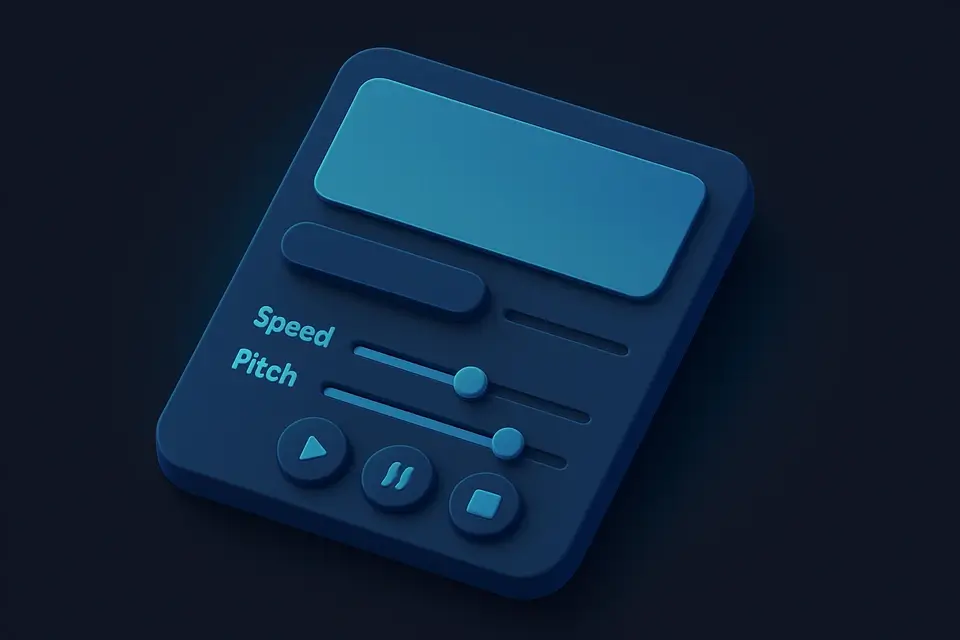
Select a voice and adjust speed and pitch.
Listen
Click Speak to hear the text read aloud.
What Is Text to Speech?
A Text to Speech is a software application that converts written text into spoken audio using speech synthesis, allowing users to read text aloud with minimal effort. Developers and individuals who need assistance with reading or prefer listening to content use it to solve the specific problem of not being able to consume text-based information efficiently.
It solves this problem by providing an interface where users can input their desired text, select from available system voices, which vary by browser and operating system, adjust the speech rate between 0.5x to 2x, and modify the pitch from 0 to 2. What makes this tool different is its ability to run entirely locally in the browser using SpeechSynthesis, eliminating the need for external APIs or libraries, and it includes play, pause, resume, and stop controls, giving users full control over their text-to-speech experience.
The tool also displays the number of characters and words in the input text, allowing users to gauge the length of their content. As a text reader, it utilizes the Web Speech API built into modern browsers to produce high-quality speech synthesis, making it an ideal solution for those who need to convert text to speech, also known as TTS, on the fly. With features like voice selection and adjustable rate and pitch, it provides users with a customizable experience tailored to their preferences.
Why Use Text to Speech?
-
Listen to text read aloud for proofreading
-
Multiple voice options from your system
-
Adjustable speed and pitch controls
-
No internet connection needed — runs entirely in the browser
Common Use Cases
Proofreading
Listen to your writing read aloud to catch errors and awkward phrasing.
Accessibility
Convert text to speech for accessibility purposes.
Language Learning
Hear text pronunciation in different languages.
Presentation Prep
Preview how your script sounds when read aloud.
Technical Guide
The tool utilizes the Web Speech API's SpeechSynthesis interface to convert written text into spoken audio. It loads voices asynchronously via speechSynthesis.getVoices() with an onvoiceschanged event listener for browsers that load voices lazily, ensuring voice availability is checked and updated dynamically. A new SpeechSynthesisUtterance object is created with the input text, selected voice, rate, and pitch, allowing for customization of the speech synthesis output. The utterance object's properties are set using values from the React state variables, such as rate and pitch, which are adjusted through user input via HTML range inputs.
Event handlers track the speaking state by attaching callbacks to the onstart, onend, and onerror events of the SpeechSynthesisUtterance object. These event handlers update the component's state accordingly, toggling flags like isSpeaking and isPaused to reflect the current playback status. Playback control uses methods from the speechSynthesis interface, including pause(), resume(), and cancel(), which are called in response to user interactions with buttons in the component. The React useEffect hook ensures cleanup by canceling any active speech on unmount, preventing memory leaks or lingering audio playback.
The tool's implementation relies on React hooks like useState and useEffect to manage state and side effects, while Framer Motion is used for animating button interactions. The code also uses TypeScript type annotations to ensure correctness and maintainability of the component. By leveraging these technologies, the tool provides a seamless text-to-speech experience with customizable voice selection, rate, and pitch adjustment, all within a self-contained browser-based implementation that eliminates the need for external APIs or libraries.
Tips & Best Practices
-
1Available voices depend on your browser and operating system
-
2Slow down the rate for clearer pronunciation
-
3Chrome, Edge, and Safari have the most voice options
-
4Use pause and resume for longer texts
Related Tools


Reading Time Calculator
Estimate how long it takes to read any text based on average reading speed.
📝 Text Tools

Speaking Time Calculator
Estimate how long it takes to speak any text aloud at various speeds.
📝 Text Tools

Text Statistics
Get comprehensive text statistics including characters, words, sentences, and more.
📝 Text Tools

Word Counter
Count words, unique words, characters, and see word frequency in any text.
📝 Text ToolsFrequently Asked Questions
Q Why are different voices available in different browsers?
Q Does it work offline?
Q Can I save the audio?
Q Why is there no sound?
Q Does it support all languages?
About This Tool
Text to Speech is a free online tool by FreeToolkit.ai. All processing happens directly in your browser — your data never leaves your device. No registration or installation required.