Resize PDF Pages Online Resize PDF pages.
PDF Resize
Resize PDF pages.
Upload PDF
Select your PDF file.
Set dimensions or presets
Choose target size or use a preset.
Download resized PDF
Copy or download the result.
What Is PDF Resize?
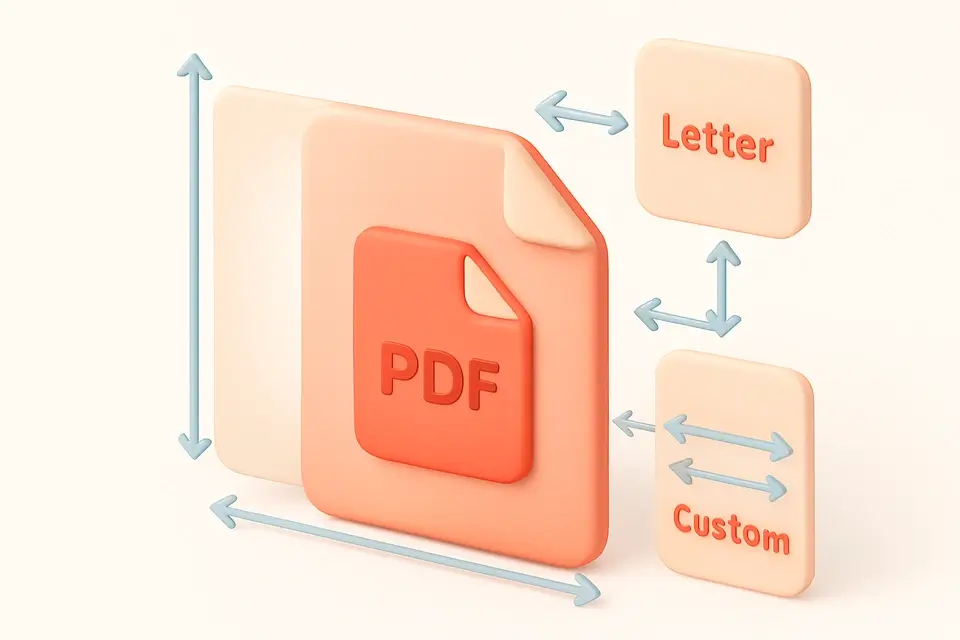
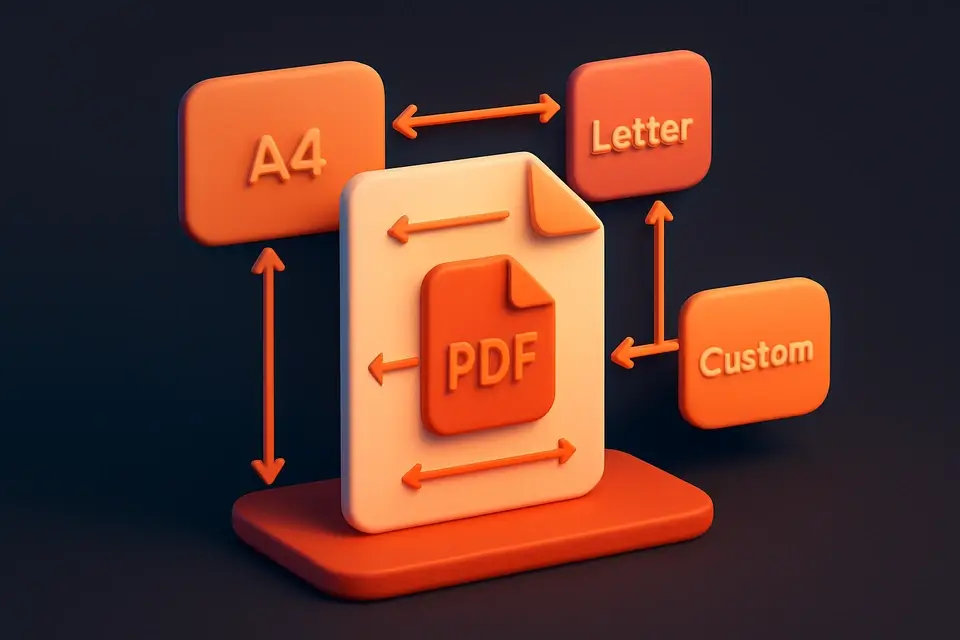
A PDF Resize is a process of adjusting the page dimensions of a Portable Document Format file to match specific requirements, such as printing or emailing. Developers and designers use it to ensure their documents are displayed correctly across different devices and platforms, solving the problem of inconsistent page layouts when sharing files online. For instance, when creating a document for print, they need to resize PDF pages to fit standard paper sizes like A4 or Letter.
This tool stands out from others due to its ability to offer preset sizes, such as A3, A5, and Legal, making it easy to resize PDF pages to common formats. It also allows users to input custom dimensions in PDF points, providing precise control over the output. The tool's client-side processing ensures that all file handling and resizing occur locally within the browser, eliminating the need to upload sensitive documents to external servers.
When using it, developers can choose from predefined page sizes or enter their own dimensions, giving them flexibility when working with different pdf resize tasks, such as how to resize pdf files for web use or creating a free pdf resize solution for email attachments. The tool's features, including the option to download the resized PDF, make it a useful asset for those who need to frequently work with and share PDF documents online, making the process of resizing pdf pages more efficient.
Why Use PDF Resize?
-
Visual resize interface
-
Client-side processing
-
Free with no limits
-
One-click download
Common Use Cases
Development
Daily use.
Review
Validation.
Docs
Configs.
Learning
Interactive.
Technical Guide
The tool utilizes client-side JavaScript with React to handle file processing and resizing locally within the browser, eliminating the need for external server uploads. It employs memoization through `useCallback` to optimize performance by preventing unnecessary re-renders of components. When a PDF file is dropped into the tool, it uses the `FileDropzone` component to accept the file and trigger the `handleFile` function, which updates the component's state with the selected file. The `process` function is then called, which imports the `PDFDocument` class from the `pdf-lib` library and loads the PDF file into a document object. This object allows for manipulation of the PDF's page sizes, which are set using the `setSize` method based on either the preset size or custom dimensions entered by the user.
The tool uses a dictionary called `PRESETS` to store predefined page sizes, such as A4 and Letter, with their corresponding width and height values in PDF points. When the user selects a preset size, the `preset` state variable is updated, and the corresponding width and height values are used to resize the PDF pages. If the user chooses to enter custom dimensions, the `customW` and `customH` state variables are updated, and these values are used to set the page sizes. The resized PDF is then saved as a blob using the `save` method of the `PDFDocument` object, and a URL object is created from this blob using the `URL.createObjectURL` method. This URL can be used to download the resized PDF file.
The tool's UI is built using responsive design principles, ensuring that it adapts to different screen sizes and devices. The `InputWithHelp` component is used to provide input fields for custom dimensions, along with hints and suffixes to guide the user in entering valid values. The `glass-button` class is applied to buttons to give them a consistent appearance throughout the UI. When an error occurs during processing, an error message is displayed using the `setError` state variable, and when the resizing process is complete, a success message is displayed along with a download button to allow the user to save the resized PDF file.
Tips & Best Practices
-
1Set preset sizes by clicking buttons labeled A4, Letter, or Legal to quickly resize PDF pages
-
2Use the custom size option to input specific widths and heights in PDF points
-
3Disable preset sizes by clicking the Custom Size button to enter unique dimensions
-
4Enter page width and height values between 1 and 100000 PDF points for precise resizing
-
5Click the Resize PDF button to process the file, which will then be downloadable if successful
-
6Reset all settings by clicking the Reset button after a successful resize or an error occurs
Related Tools



Frequently Asked Questions
Q Is PDF Resize free?
Q Is PDF Resize safe?
Q Can I use it offline?
Q What browsers are supported?
Q Can I use it commercially?
About This Tool
PDF Resize is a free online tool by FreeToolkit.ai. All processing happens directly in your browser — your data never leaves your device. No registration or installation required.