Audio Sample Rate Converter Convert audio files to different sample rates (44.1kHz, 48kHz, etc.).
Audio Sample Rate Converter
Convert audio files to different sample rates (44.1kHz, 48kHz, etc.).
Upload Audio
Drop your audio file or click to browse.
Select Sample Rate
Choose the target sample rate (22.05, 44.1, 48, or 96 kHz).
Download
Download the resampled audio file.
What Is Audio Sample Rate Converter?
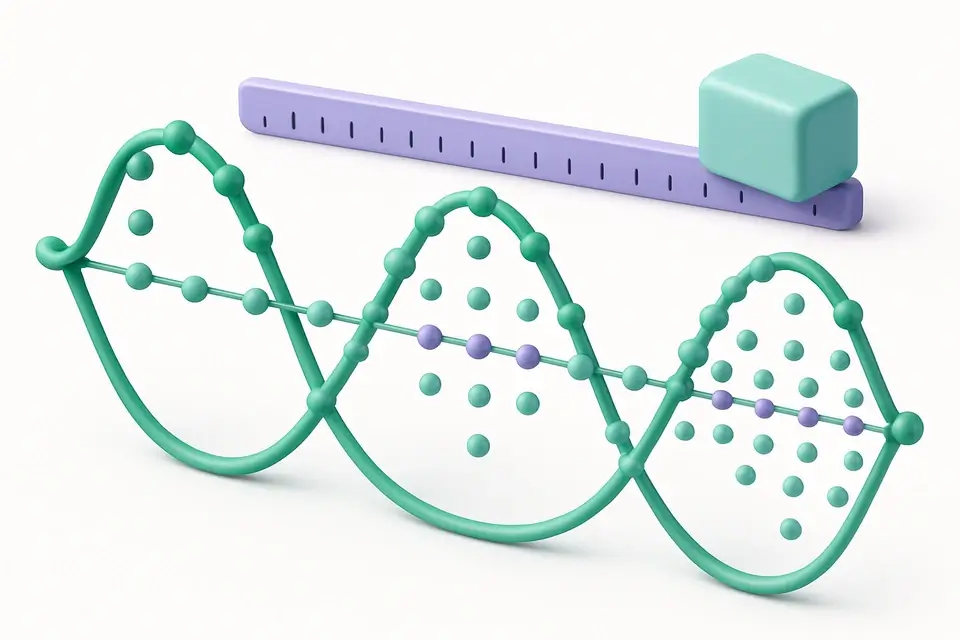
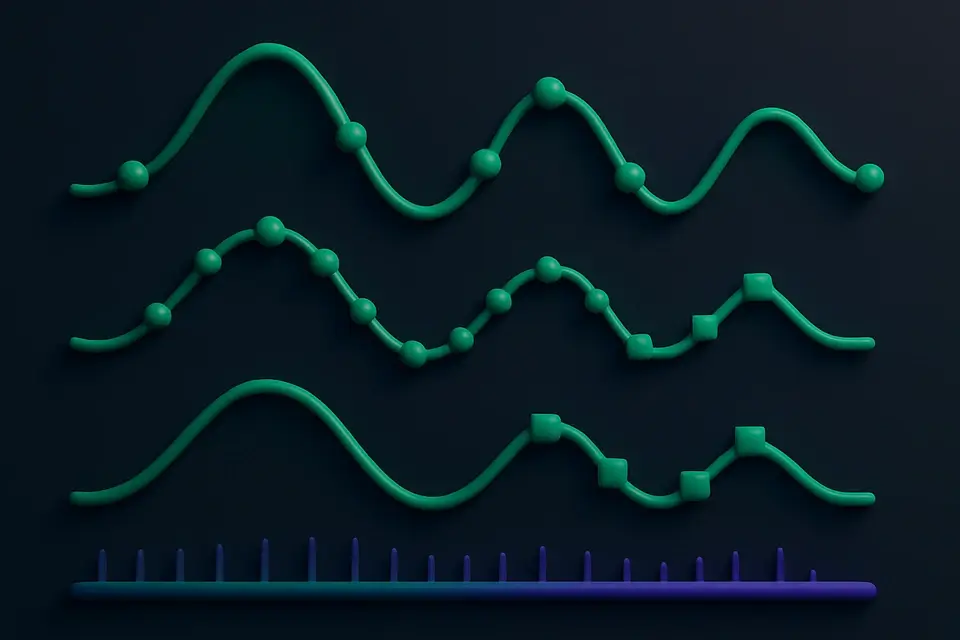
The Audio Sample Rate Converter changes the sample rate of audio files. Sample rate determines how many times per second the audio is sampled — higher rates capture more detail. Standard rates include 44.1 kHz (CD quality), 48 kHz (video/broadcast standard), and 96 kHz (high-resolution audio). This tool uses the Web Audio API's built-in resampling capabilities via OfflineAudioContext to convert between sample rates with high-quality interpolation. Essential for matching audio sample rates for video editing, broadcast, or music production workflows.
Why Use Audio Sample Rate Converter?
-
Convert between all standard sample rates (22.05 to 96 kHz)
-
High-quality resampling using browser's native algorithms
-
Essential for matching audio requirements for video and broadcast
-
Browser-based processing — no uploads needed
Common Use Cases
Video Production
Convert audio to 48 kHz to match video production standards.
CD Mastering
Convert to 44.1 kHz for CD-quality audio format.
High-Res Audio
Upsample to 96 kHz for high-resolution audio workflows.
DAW Compatibility
Match sample rates across multiple audio files for DAW projects.
Technical Guide
Sample rate conversion uses the Web Audio API's OfflineAudioContext, which has built-in high-quality resampling. The source file is decoded using an AudioContext at its native sample rate. An OfflineAudioContext is created at the target sample rate with the appropriate number of channels and a duration calculated as: newLength = originalDuration * targetSampleRate. The decoded AudioBuffer is played into the OfflineAudioContext via an AudioBufferSourceNode, and the context's built-in resampler handles the rate conversion using sinc interpolation. The rendered output AudioBuffer contains the audio at the new sample rate. This is then encoded as a 16-bit PCM WAV file. Upsampling adds interpolated samples; downsampling applies an anti-aliasing filter before decimation to prevent aliasing artifacts.
Tips & Best Practices
-
144.1 kHz is sufficient for all music playback — it covers the full audible range
-
248 kHz is the standard for video and broadcast — use this for video projects
-
3Upsampling doesn't add audio quality — it just increases file size
-
4When matching rates between files, prefer downsampling the higher-rate file over upsampling the lower-rate one
Related Tools
MP3 to WAV Converter
Convert MP3 audio files to WAV format instantly in your browser.
🎵 Audio Tools
WAV to MP3 Converter
Convert WAV audio files to compressed MP3 format in your browser.
🎵 Audio Tools
Audio Bitrate Changer
Change the bitrate of audio files to adjust quality and file size.
🎵 Audio Tools
Audio Channel Converter
Convert audio between mono and stereo channel configurations.
🎵 Audio ToolsFrequently Asked Questions
Q What is sample rate?
Q Which sample rate should I use?
Q Does upsampling improve quality?
Q What happens when downsampling?
Q Is processing done locally?
About This Tool
Audio Sample Rate Converter is a free online tool by FreeToolkit.ai. All processing happens directly in your browser — your data never leaves your device. No registration or installation required.