Audio Equalizer Apply EQ adjustments to boost or cut frequency bands in audio.
Audio Equalizer
Apply EQ adjustments to boost or cut frequency bands in audio.
Upload Audio
Drop your audio file or click to browse.
Adjust EQ
Move the sliders to boost or cut specific frequency bands.
Download
Download your EQ-adjusted audio file.
What Is Audio Equalizer?
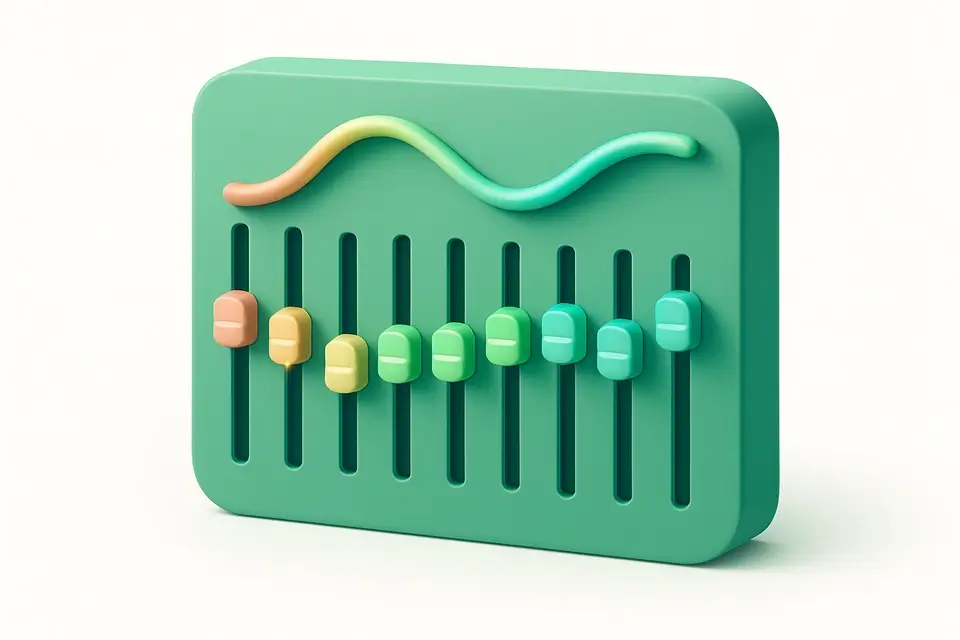
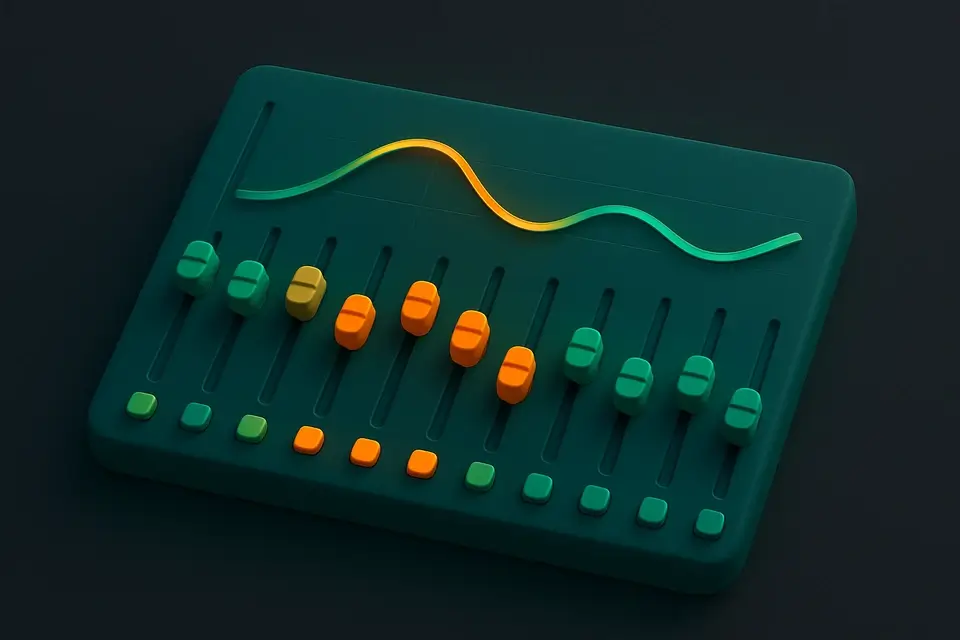
The Audio Equalizer lets you adjust the frequency balance of any audio file using a multi-band EQ interface. Boost bass frequencies for more punch, cut muddy mid-range, or enhance treble clarity — all from your browser. The tool provides a 10-band graphic equalizer using the Web Audio API's BiquadFilterNode, covering the full audible frequency spectrum from 32 Hz to 16 kHz. Preview your adjustments in real-time and download the processed audio. Includes preset EQ curves for common scenarios like bass boost, vocal clarity, and treble enhance.
Why Use Audio Equalizer?
-
10-band graphic equalizer covering 32 Hz to 16 kHz
-
Preset EQ curves for common adjustments (bass boost, vocal clarity, etc.)
-
Real-time preview of EQ changes
-
All processing in your browser — files stay private
Common Use Cases
Music Enhancement
Enhance the bass, mids, or treble of music recordings.
Voice Clarity
Boost speech frequencies and cut background rumble for clearer voice recordings.
Podcast Post-Production
Apply EQ to improve the tonal balance of podcast episodes.
Audio Restoration
Cut problematic frequencies like hum (50/60 Hz) or harshness.
Technical Guide
The equalizer uses a chain of BiquadFilterNodes from the Web Audio API, each configured as a "peaking" filter type. The 10 bands are centered at standard ISO frequencies: 32, 64, 125, 250, 500, 1k, 2k, 4k, 8k, and 16kHz. Each band has an adjustable gain parameter (±12 dB) and a fixed Q (quality factor) value that determines bandwidth. The filter chain is connected in series: source → filter1 → filter2 → ... → filter10 → destination. For processing, an OfflineAudioContext renders the full audio through the filter chain. Presets are implemented as predefined gain arrays for the 10 bands. The frequency response is visualized using BiquadFilterNode.getFrequencyResponse() to plot the combined EQ curve on a canvas.
Tips & Best Practices
-
1Cut frequencies more than you boost — this generally produces cleaner results
-
2Use the "Vocal Clarity" preset as a starting point for speech audio
-
3The Bass Boost preset works well for music played on small speakers
-
4Small EQ adjustments (2-4 dB) usually sound more natural than extreme changes
Related Tools
Audio Volume Changer
Increase or decrease the volume of any audio file.
🎵 Audio Tools
Audio Normalizer
Normalize audio volume to a consistent level automatically.
🎵 Audio Tools
Audio Compressor
Apply dynamic range compression to reduce volume differences in audio.
🎵 Audio Tools
Audio Noise Gate
Apply a noise gate to reduce background noise in quiet sections.
🎵 Audio ToolsFrequently Asked Questions
Q What is a graphic equalizer?
Q What frequency range is covered?
Q Can I save my EQ settings?
Q What does Q factor mean?
Q Is the processing done locally?
About This Tool
Audio Equalizer is a free online tool by FreeToolkit.ai. All processing happens directly in your browser — your data never leaves your device. No registration or installation required.